There are a wide variety of easy-to-edit tables that contain the company specific information available when pressing Ellipsis button next to certain fields on the input screens.
The following chart briefly describes the items on the Maintain menus. Each one is covered in detail in this chapter.
Menu Item Submenu Item Contents of Table
Organization
Organization Organizations within the company
Region Regions within the company
1st thru 3rd Levels in the client’s hierarchy
Sub 2 and Sub 3 A 4th and 5th pseudo level
Loss Act Injury act codes
Agency (Source) Source of accident codes
Body - Member Member of body injured
Site Site or part of body injured
Cause Cause/reason for injury
Deductible Deductible codes
Loss Coverage Loss coverage codes
Nature Nature of injury codes
OSHA OSHA codes
Recovery Types Expected recovery codes
Restrictions Restricted duty codes
Severity Severity of injury codes
Type of Coverage Coverage type codes
Type of Loss Loss type codes
Type of Settlement Settlement type codes
Carrier Tables EDI, NCCI and Traveler’sTables
Rsv/Payments/ Recoveries
Indemnity Pay Codes Reserve / cost center account 1
Medical Reserve / cost center account 2
Rehab Reserve / cost center account 3
Expense Reserve / cost center account 4
CC5 (Legal) Reserve / cost center account 5
CC6 (Other) Reserve / cost center account 6
Reserve Types Types of reserve accounts
Reserve Change Reserve account change codes
Recovery Type Recovery type codes
Fed/State Withholding Tax tables
Void Types Void transaction codes
Late Payment Reasons Codes for EDI export purposes
Industry
SIC Standard industry codes
NAICS North American Industry Classification System codes
NCCI National Council on Compensation Insurance codes
NDC National Drug codes
Occupation Occupation codes
Medical Fee
Override Codes to override fee schedule
DRG Codes (ICD-9) DRG or ICD-9 diagnosis codes
Initial Treatment Initial treatment codes
HMO/PPO HMO/PPO provider codes
MOC Managed care organizations
UCR Percentile State UCR percentiles
Provider Specialty Vendor specialty codes
Reason Reason/referral codes for Case Management module
Other
Relationship Relationship to employee
State State specific information
County Country codes for use on custom screens
Employment Status Employment status codes
Location Codes for specific locations
Legal Litigation codes
Forms/Letters
Common Standard ATS forms/letters
User Client-specific forms/letters
Letter Builder Editor for creating HTML documents
User Defined
Tables Lists the client’s custom tables
TABLE Maintenance
The Maintenance portion of the system provides the ability to modify the contents of various tables in the database that are used to populate the values in lists.
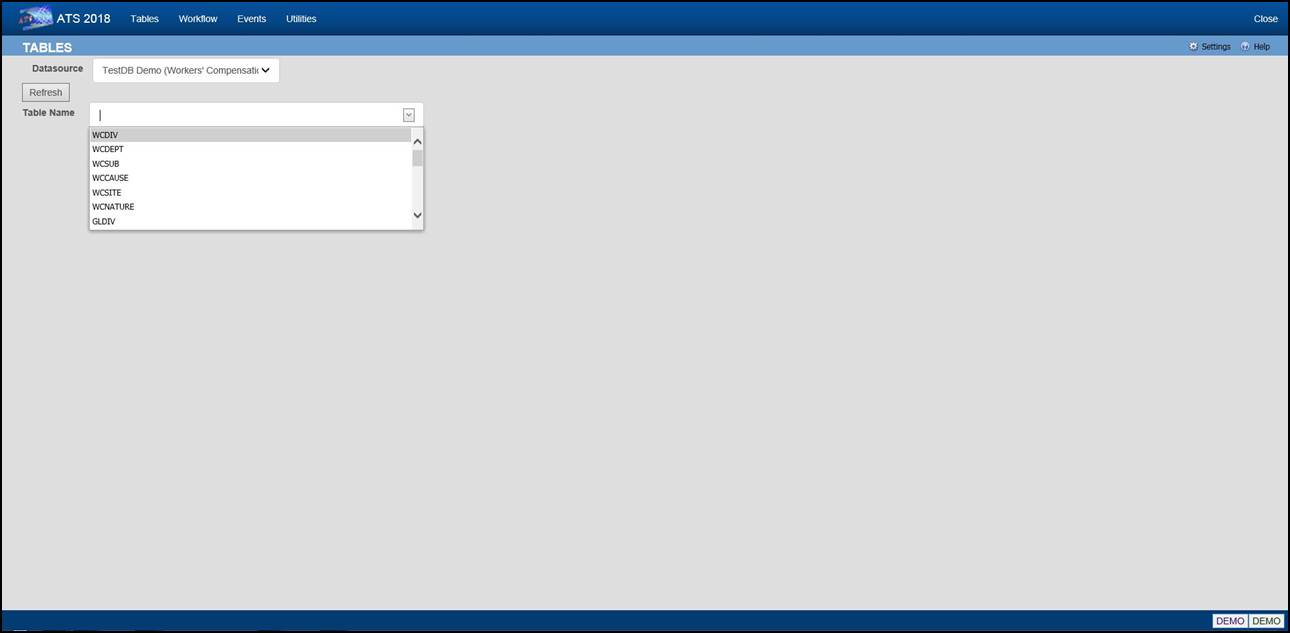
Figure 12‑1: Table Maintenance –
Table Selection
To maintain the values in a table, start by selecting the Datasource where the data resides. Then select the name of the table you want to access. A list of the records contained in the table will be displayed along with all of the values each record contains.
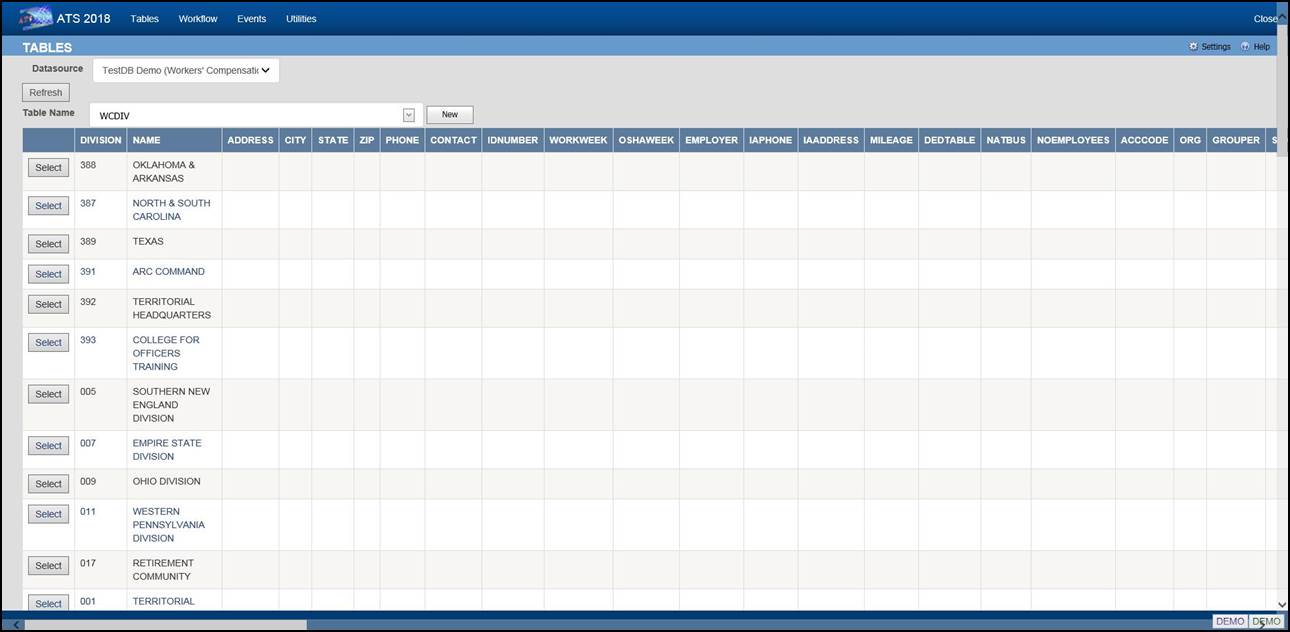
Figure 12‑2: Table Maintenance –
Table Contents List
To edit the values for a particular record, click the Select button next to the list entry. This will open the corresponding editor for records in the table.
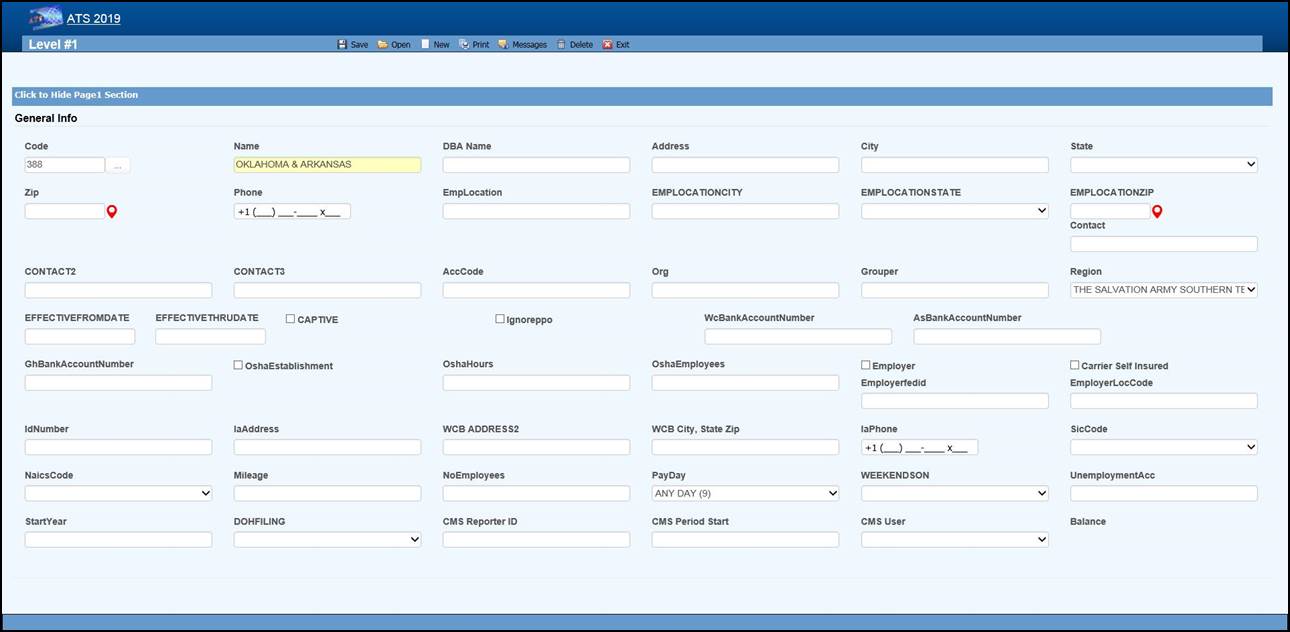
Figure 12‑3: Table Maintenance –
Sample Editor Screen
Organization Maintenance
This menu should be used to define the levels in your company’s hierarchy that will be used to group claims for reporting purposes and enter other information related to the employee. The options will be covered in the order in which they appear on the menu:
· Region
· Level 1
· Level 2
· Level 3
· Level 3 - Sub 2
· Level 3 - Sub 3
· Organization
Region
Regions may be associated with a specific level 1 or state depending on the Region Mode set with Administer-Configuration-Module Parameters. If a user has access to one or more regions and Region View has been set in the user's profile, the operator may view/edit claim and employee records and process payments only in the particular region(s). If these features are to be used, select this menu to enter the region codes on the screen displayed below.
Note that ATS allows bank accounts to be set up for specific regions in any or all of the ATS/Comp modules. When this feature is used, these accounts must be set up with the Process-Trust Fund menu.
The fields are described as follows:
|
Field Name |
Description |
|
Code |
The code to identify
the specific region. |
|
Description |
The description of
the region. |
|
Trade Name |
The trade (company)
name if any. |
|
DBA Name |
A DBA name may be
needed if the region is the Responsible Reporting Entity (RRE). |
|
Mailing Address/Phone |
The address and phone
number for the region as needed for reporting purposes. |
|
Bank Account Numbers |
If this region has a
specific bank account for any or all of the ATS/Comp
modules, enter the account number. |
|
Employer |
If this is the only
employer in the region, check this box and fill in the rest of the
information for reporting purposes. |
|
Self-Insured |
A check indicates
that the employer is self-insured. |
|
Emp. Fed ID |
The employer’s tax
ID. |
|
Physical Address |
The employer’s
address if it is different than the mailing address. |
|
Location Code |
The employer's
location code should be entered if it is required on the first report of
injury. |
|
Unemployment Account
Number |
The employer’s UIAN
number. |
|
Pay Day |
The
day of the week the employees are paid where 0 = Sun, 1 = Mon, 2 = Tues, 3 =
Wed, 4 = Thurs, 5 = Fri, 6 = Sat, and 9 = Any Day. If AutoPay is used and the region is the employer, this
information and the day the (work) week
ends will be used to schedule the payments to be batched. (For
details refer to the AutoPay Mode flag covered in the Parameters-Application
section of this chapter.) |
|
Week Ends On |
The day the work week ends should be entered if AutoPay is used and the level is the employer. |
|
DOH Filing |
When New York’s Department
of Health’s surcharge needs to be paid, either monthly or annually. |
|
Form Type |
The type of payment to be issued: checks only, checks by
default, vouchers only, or vouchers by default. |
|
Effective From/Thru |
The date this region
(fund, member, plan) before effective. If it’s no longer use,
enter the ending date. |
|
CMS Reporter ID |
The reporter ID if
this region is the RRE. |
|
CMS Reporting Group |
The number of the
group (from 1 to 12) assigned to the RRE. |
|
CMS User |
The user responsible
for creating the export files. A diary will be generated to remind that
person to make sure the necessary claims have been batched. |
Levels 1 to 3
When generating reports, a client database is normally sorted and broken up into groups depending on the values entered in the level fields. Valid entries for these levels are created using the Maintain- Organization menu.
Whenever levels are displayed on an input screen, they will be labeled Division, Dept (department) and Sub (sub-department) by default. A system administer may customize these labels with the Application Parameters menu.
Although ATS will help you set up your level categories initially, it is important to understand what is involved. For example, suppose you are a nation-wide company of XYZ retail stores. The company would be considered the client in the ATS System. If you have an RIS department to administer the claims, your company would also be the ATS agent. Since your organization is divided into geographical regions, you could use the ATS region feature and levels as shown below. Although codes would be entered in the database, the description is used here for clarity purposes.
Region Level 1: Store Level
2: Department
Western Market SF-CA Women’s Clothing
Eastern Wall Street-NY Kitchen
Central Burlington-IA Furniture
On a report, the claim information may be sorted and grouped by region, store, and department as in:
Central
Burlington-IA
Furniture
claim 1
claim 20
claim 61
Appliances
claim 12
claim 35
Chicago-IL
Linens
claim 23
Eastern…
In another situation, an entity such as the ABC school district may use the following two levels. Sites such as classroom, employee parking lot, and bus would be entered as locations (instead of level three) since there is a cost analysis by location available on the statistical report menu.
Level 1: Division Level 2: Dept Level 3: N/A
Administration Accounting Employee Parking Lot
Instructional Marshall High School Classroom
Transportation School Buses Bus1
The following screen is used to enter information for Level 1. The label and functionality of the Grouper may vary, but otherwise the level screens are similar. The Region, Bank Accounts, CMS and Ignore PPO fields are only available in level 1.
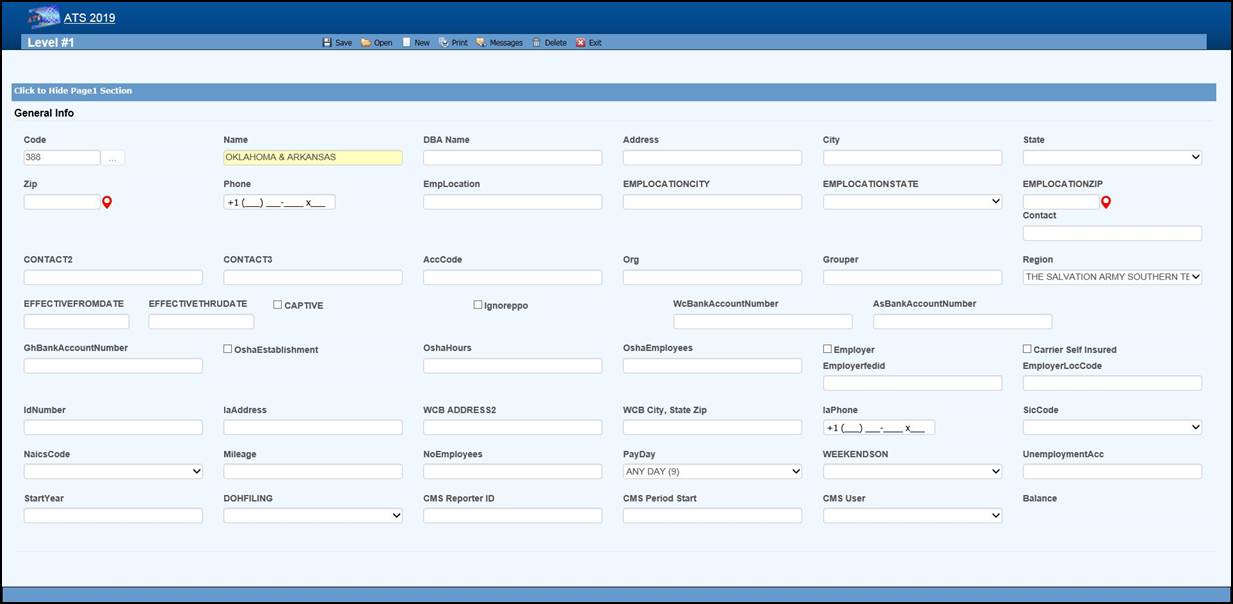
Figure 12‑4: Organization
Maintenance – Level 1 Entry
When a specific level is an employer, enter items such as the Address, Fed. ID, SIC Code, and WC ID number if they are required on your state-mandated forms and letters. The Pay Day and Week Ends On should also be entered before scheduling payments with AutoPay.
The fields on the form are described as follows:
|
Field Name |
Description |
|
Code |
The
code used to reference a specific level. When the policy feature is in use
and the level is used in the policy format code, do not use a hyphen in the
level code. Otherwise, the claim program will not be able to find a policy
since hyphens are used to separate the parts of the policy code. For example: OK CCC_ADM Not OK CCC-ADM |
|
Name |
The name of the level such
as ABC Stores or
a functional unit like Administration. This name will
appear in reports and on any input screen where the level code is entered. It may also appear on
state forms and letters if this level is the claimant’s employer. |
|
DBA Name |
The DBA name. |
|
Mailing Address |
The complete mailing
address. |
|
City |
The city. |
|
State |
The state code. |
|
Zip |
The zip or postal
code. |
|
Phone |
The phone number. Enter 10
digits and the program will insert the parentheses, space and dash. |
|
Contacts |
The name of one to
three contact people at this level. |
|
ACC Code |
An optional code that
may be used by the accounting interface when making payments. |
|
ORG Code |
A second
accounting/organizational code that may be used for your own purposes. |
|
Grouper |
The label and
functionality of this field will vary. Refer to the Level Type Feature
section for details. |
|
Effective From/Thru |
The date this region
(fund, member, plan) before effective. If it’s no longer use,
enter the ending date. |
|
OSHA Establishment |
Check this box if
this level is considered an OSHA workplace where
the log will be kept. |
|
Hours Worked |
This is the total
number of hours worked by all employees during the past year that should be
displayed on OSHA's Form 300A. This number may be calculated by
multiplying the number of full-time employees times
the number of hours worked/year (excluding vacations). |
|
Avg Number of
Employees |
This is the annual
average number of employees to be displayed on OSHA's Form 300A. This number may be calculated by dividing
the total number of payments made to employees during the year by the number
of pay periods. |
|
The
following fields are only available on the level 1 screen: |
|
|
Region |
If the Region by Level feature has been implemented, this field
will appear on the Level 1 form so the code associated with each level may be
entered. Refer to the Parameters-Option/Module and Region sections in this
chapter for information on using this feature. |
|
Bank Accounts |
Payments may be drawn
against a bank account set up for each level. This feature may be used in one
or all of the ATS/Comp modules by entering the
account number in the appropriate field on this form. (Accounts must also be
set up using the Finance-Edit Trust Fund menu.) |
|
Captive |
A check indicates
that this level is a captive. |
|
Ignore PPO |
(ATS/Med only) Check
this box if the Claims program should ignore the provider’s HMO/PPO discount when
calculating the benefit amount to be paid. The field has no effect in
ATS/Comp. |
|
The
following information should be supplied if the level is an employer: |
|
|
Employer |
Check
this box if this level is an employer. The system will use this flag to
determine who the employer is when filling out an Employer's First Report of
Injury and some of the
state-mandated forms and letters.
The program will look for the employer by checking in the following order: ·
Level 3 (starting with Sub 3 and Sub 2) Level
2 ·
Level 1 ·
Region State Client |
|
Self-Insured |
Check this box if the
employer is self-insured. |
|
Fed ID |
The employer’s tax ID
number. |
|
Location |
The location code or
number required by the state. |
|
Physical Address |
The physical address
if it’s different from the mailing address. Include city, state, and zip for
reporting purposes. |
|
UIAN |
The employer’s
unemployment account number. |
|
Mileage |
The amount paid for
an office visit as a whole number of cents/mile (without a decimal). |
|
Total Employees |
The total number of
employees at this level should be entered if it is needed on a state-mandated
report. |
|
Pay Day |
The day of the week
the employees are paid where 0=Sun, 1=Mon, 2=Tues, 3=Wed, 4=Thurs, 5=Fri,
6=Sat, and 9=Any Day. If AutoPay is used, this information and the day the
(work) week ends on will be used to schedule the payments to be batched. (For
details refer to the AutoPay Mode flag covered in the Parameters-Application
section of this chapter.) |
|
Week Ends On |
The day the work week ends should be entered if AutoPay is used. |
|
WC ID |
The workers' comp or
state ID number. |
|
WC Phone |
The phone number of
the Workers’ Comp Board. |
|
WC Address |
The address of the
Workers’ Comp Board. |
|
SIC |
The SIC code for the business done at this level. |
|
NAICS Code |
The North American
Industry Classification System code for this
level. |
|
DOH Filing |
When New York’s
Department of Health’s surcharge needs to be paid, either monthly or
annually. |
|
Fiscal Year |
The start of the
fiscal year in a MMDD format as 0101 or 0701. |
|
CMS Reporter ID |
The reporter ID if
this region is the RRE. |
|
CMS Reporting Group |
The number of the
group (from 1 to 12) assigned to the RRE. |
|
CMS User |
The user responsible
for creating the export files. A diary will be generated to remind that
person to make sure the necessary claims have been batched. |
Level Type Feature
The label and functionality of the Grouper field will vary depending on whether the Level Type value has been set to “Validate”, "Backfill” the default, or "None” in the Application Parameters. If this field contains:
1. Validate - the Claim and Employee programs will use the level 1 entry to determine which item(s) are valid for the subsequent levels and generate the selection lists accordingly.
In this case, the label for the next level will appear on the form (e.g. the level 1 Grouper field would be labeled Dept by default). Clicking the Ellipsis button will display a dialog with a list of the available codes for level 2.
Select the item(s) that are associated or valid for the specified level and click Add. The first entry in the top list box will be marked with an asterisk (*) to indicate that it is the primary code that will appear on the input form. To move another item to the top of the list, highlight the entry and click the Make Primary button. Clicking Remove will take the selected item off the list.
The Grouper is labeled “N/A” in level 3 since it provides no function when the Validate feature is used.
2. Backfill - the Grouper field will be used to link specific levels in the client’s hierarchy as in the following example:
Code Grouper
Level 1 ABCST1 ABCST
Level 2 CA123 ABCST1
Level 3 101 CA123
In level 1, "Grouper" will appear as the label and the contents of the field may be used for grouping similar levels on a custom, adhoc report. In the example above, “ABCST” would group information on all the ABC Stores (ABCST<n>) together.
In levels 2 and 3, the label for the previous level will appear on the form (e.g. Division on the form for level 2 and Dept for level 3). Clicking <F4> will display a list of the available codes. Select the one associated with the current level. In the example, “ABCST1” would be entered as the Grouper in the record for level CA123.
When you are entering a new claim or employee record, you can enter the code for level 3 (101) and the program will use the value in the Grouper field to fill in the codes for the other levels (CA123 and ABCST1) automatically.
Sub 2 / Sub 3
These menu options may be used if you have more than three levels in your company's hierarchy. The codes are entered on a screen similar to the one used for Level 3.
Sub 2 and sub 3 are referred to as pseudo levels 4 and 5 since the Level Type feature that validates or backfills levels 1 through 3 does not recognize these codes.
The claim forms that you are using must be modified in order to use these codes.
Loss Maintenance
Loss codes are entered in the claim to describe the agency, body site, cause and nature of the claimant’s injury or illness since this information is required on many state forms. A system administrator may change the labels for these codes with the Application Parameters menu so different text may appear on your input forms.
Special cost analyses by the standard loss codes mentioned above may be produced using Statistical Reports to determine if there are any trends that need to be addressed.
You may have a custom set of claim forms that allow you to enter additional codes. All of the codes on the menu are briefly described on the following chart.
|
Loss Codes |
Description |
|
Act |
The act which caused
the injury or accident. |
|
Agency (Source) |
The source of the
accident for further breakdown of the cause such as slippery floor. |
|
Body Site |
The part of the body
which was injured such as the abdomen. |
|
Body Member |
The member of the
body which was injured. |
|
Cause |
The reason for accident (e.g. slip and fall). |
|
Deductible |
The coverage
deductible codes. |
|
Loss Coverage |
The codes for the
loss coverage plans. |
|
Nature |
The nature of
injuries such as sprained or broken. |
|
OSHA |
The Occupational
Safety and Health Administration codes. |
|
Recovery Types |
The codes which
indicate the degree of recovery that is expected. |
|
Restricted Duty |
The codes which
describe the type of restricted duty. |
|
Severity |
The codes which
identify the severity of the injury. |
|
Type of Coverage |
The codes which
identify the type of coverage. |
|
Type of Loss |
The codes which
identify the type of loss. |
|
Type of Settlement |
The codes which
identify the type of settlement that was granted. |
The screen used to maintain the Cause codes is shown below. The same one is used for all the loss code tables except for the OSHA and restriction screens that only contain a code and description.
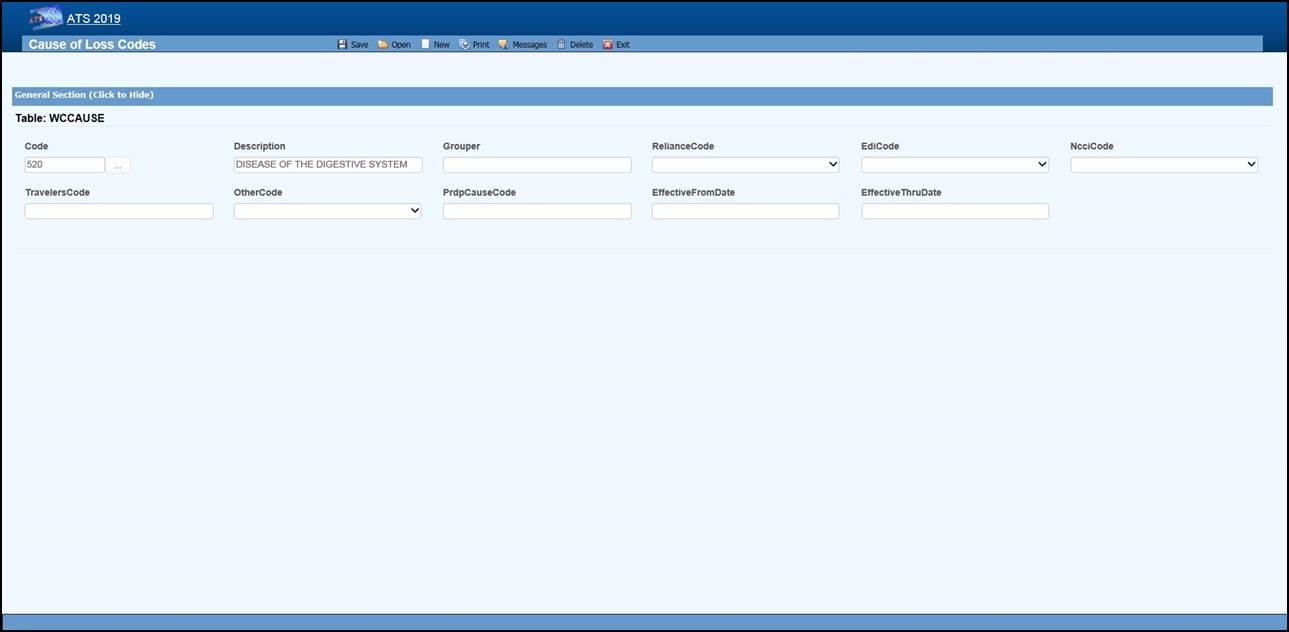 Figure 12‑5: Loss Maintenance –
Cause Code Entry
Figure 12‑5: Loss Maintenance –
Cause Code Entry
Note the NCCI code above. Unless you normally use NCCI codes, you must select a code equivalent to the cause, site and nature codes you use in-house if you report transactions to the state via EDI.
The loss code menu options prompt for the following information:
|
Field Name |
Description |
|
Code |
The code used to
describe the accident or injury. Description The description
associated with the code. |
|
Grouper |
A value that may be
used to sort and group records for reporting purposes. For example, you might
enter ACTS_GOD as the Grouper code for wind, earthquake, lightning etc. |
|
Effective From/Thru |
The range of dates
the code was effective. |
|
Exclude from Web |
Check this box if the
code should not be available on the list. |
|
Carrier Codes |
The fields for the
insurance carriers are disabled unless your system has been setup to use
them. In that case, the codes for the carriers you deal with must exist in
the appropriate carrier table before you can associate them with a specific
loss code. |
|
Carrier Tables |
Suppose
you need certain loss codes for reporting/exporting purposes, but you do
not use them internally. In that case, you would have to add the codes in the appropriate carrier table so that they can be
entered into the standard loss tables for cross reference purposes. To do
this: 1.
Select the List option on the Loss-Carrier Tables menu and
pick the desired table. 2.
Enter the codes you need. 3.
Enable the appropriate field (e.g. NCCI Code) on your loss
screen. (A system administrator has the authority to do this.) 4.
Modify the record for each code by entering the
equivalent carrier’s code. Typically, the Data
Export program will search for the appropriate carrier code. If the field is
empty, the program will use the Code that you use in-house. |
Reserves/Payment/Recovery Maintenance
The ATS System uses the information in a set of tables to classify the different types of reserve, payment and recovery transactions that may be made. Before discussing the various tables in this group, it is important to clarify some of the terminology that is used in this manual.
|
Term |
Description |
|
Reserve Type Codes |
These
refer to the types of cost center or payment categories. By default, ATS supports four
reserve categories, but this number may be increased to six with the
Tables-Parameters-Application menu. The names of the
first four categories should be indemnity, medical, rehab, and expense.
Categories five and six are normally legal and other, but
may be changed. Labels for the categories are entered with the Reserve Types
option on this menu. |
|
Cost Center Codes |
Payment
codes related to a specific cost center. These items are normally labeled
“”CC” or “Pay Code” on the ATS input screens. The options will be
covered in the order in which they appear on the menu: ·
Indemnity ·
Medical ·
Rehabilitation ·
Expense ·
Legal ·
Other ·
Reserve Types ·
Reserve Changes ·
Recovery Types ·
Void Types ·
Late payment Codes ·
Federal/State Withholding |
Cost Center Codes
Cost Center codes are also referred to as payment codes in the ATS System since they are used to track payments against particular categories of reserve accounts. All categories of cost center codes are entered on a screen identical to the one shown below.
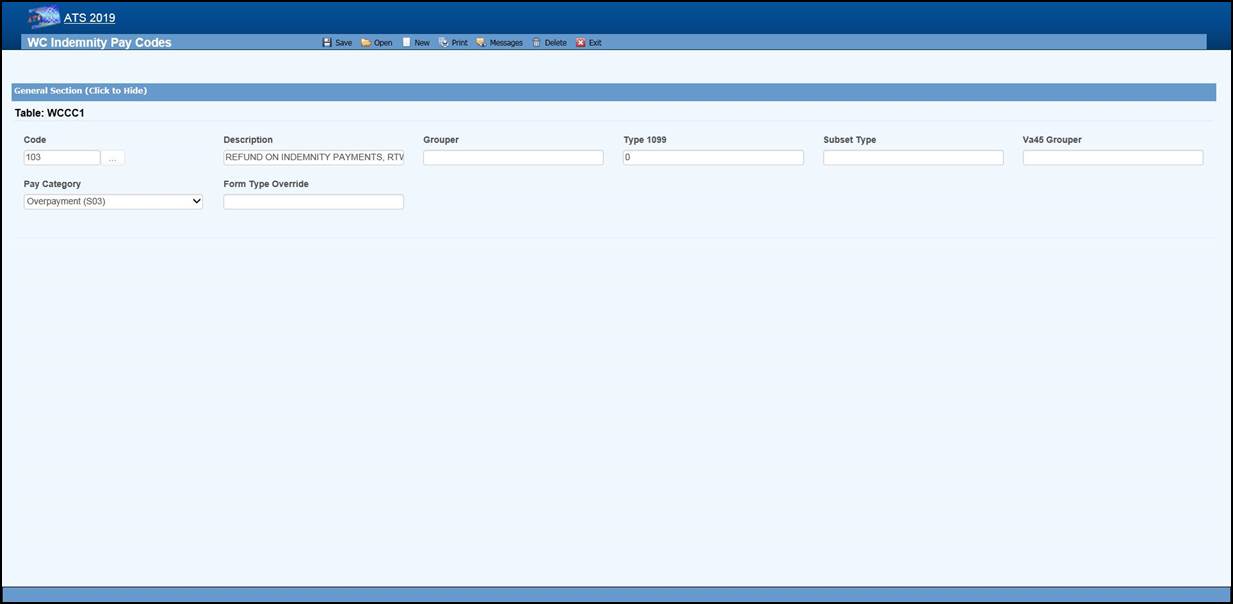 Figure 12‑6: Payment Maintenance –
Cost Center Code Entry
Figure 12‑6: Payment Maintenance –
Cost Center Code Entry
The following information is stored for each of the cost centers:
|
Field Name |
Description |
|
Code |
The cost center or
payment code. These items
are normally labeled “Pay Code” on the ATS screens. |
|
Description |
The description of
the code. |
|
Group |
The code used in
making time loss payments (TD), calculating the loss of earning percentage (LEP) or
grouping similar items together on a report. See the notes below. |
|
1099 - Misc Amount Type
Code |
Enter values of
income (3), medical (6), non-employee compensation (7), gross proceeds to an
attorney (C) if the pay code refers to a 1099 reportable item.
Contact your accounting department if you have questions about entering these
values to ensure that the amount on a vendor’s
1099 return is correct. |
|
Sub Type |
This value will be
used to generate New York’s C-8 report. The special payment categories may be either “L” (Lump Sum), “D”
(Death), or “F” (Disfigurement). |
|
Report Grouper |
Special
codes needed to classify payments for some specific reporting purposes. ATS support will let you know when you will need to use
this field. |
|
Category |
Many states require
employers to submit certain payment information. If you have
to produce this type of report, it is important to enter the
associated category for the payments that need to be included. |
The Grouper Field
1. The Days Lost and OSHA Days are calculated when comp payments are made for an indemnity or rehab pay code that contains “TD” in the Grouper field. (Note that TTD and PTD are valid TD codes.)
2. AutoPay may also be used to schedule permanent disability payments when the Grouper field in the pay code contains “PD”.
3. Several of the standard reports review the check history table and total the benefits paid to date. In order for this feature to work correctly, the appropriate benefit type code must have been entered in the Grouper field for the pay codes. For reserve category #1 (indemnity) this code may be either “TD” or “PD”. Only TD is recognized for pay codes in reserve category #3 (rehab).
Reserve Types
The ATS System can maintain up to six cost centers or reserve accounts. The first four categories should be used since they are required for state reporting purposes. Their names should not be changed. They will appear whenever the reserves are displayed on input forms and reports.
|
Cost Center |
Payments Related To |
|
1 |
Indemnity |
|
2 |
Medical |
|
3 |
Rehabilitation |
|
4 |
Expense |
|
5 |
Legal or state
statutory benefits such as California’s 4850 |
|
6 |
Other categories that
are not already defined |
In order to use five or six reserve categories, a parameter must be set in Application Parameters. The names of these categories are normally “Legal” and “Other”, but they may be changed.
Selecting the claim type is one of the first things done when entering a new claim. If either indemnity or medical is specified, the program will check to see if there are any default reserve values. In the example above, $500 will automatically be displayed as the medical reserves for a new medical claim. No medical reserves will be entered for indemnity claims.
Reserve Change
Whenever the reserves for a claim are changed, the program will ask the operator to select a code to explain why the change was made before the record can be saved. The History module may be used to view this information along with who made the change and when.
This option is provided so you may enter the Reserve Change codes you need along with their descriptions.
Some sample codes are listed below.
001 Reserve Adjustment
001N Initial Reserve - New Claim
002 Time Loss
003 Surgery Scheduled
004 Second Surgery
005 Surgery Unsuccessful
006 Healing Delay - Injury Related
007 Healing Delay - Other Medical
008 Residuals Predicted by Medical
009 Residuals Greater than Predicted
010 Vocational Assistance Needed
011 Recovery Granted
012 Litigation - Additional Comp
013 Change in Compensation Rate
014 Change of Physician
015 Unsuccessful RTW
016 Change of Diagnosis
017 Benefit Reduction
018 Recalculation - PTDs and Fatals
019 Reopening Reserve
020 Administrative Delay
021 Reduction - Submitted for Close
022 Reduced-Residual less than Predicted
023 Reduced - Successful RTW
024 Reduced - Medically Stable
Recovery Type
This option displays the following form so you can enter the codes for the types of recovery transactions that can be made.
Void Types
This option displays the following form so that you can enter the codes to classify the types of void transactions that can be made.
Late Payment Reasons
The states that accept reports electronically require a code to indicate a reason for issuing an initial indemnity payment more than 14 days after the date of injury. This menu option is provided so you can enter the appropriate code when you are making the payment.
The valid codes are:
L1 No excuse
L2 Late notification employer
L3 Late notification employee
L4 Late notification jurisdiction transfer
L5 Late notification health care provider
L6 Late notification assigned risk
L7 Late investigation
L8 Technical processing delay computer failure
L9 Manual processing delay
LA Intermittent lost time prior to first payment
C1 Coverage lack of information
E1 Wrongful determination of no coverage
E2 Errors from employer
E3 Errors from employee
E4 Errors from jurisdiction
E5 Errors from health care provider
E6 Errors from other claim administrator/IA/TPA
D1 Dispute concerning coverage
D2 Dispute concerning compensability in whole
D3 Dispute concerning compensability in part
D4 Dispute concerning disability in whole
D5 Dispute concerning disability in part
D6 Dispute concerning impairment
Federal/State Withholding
These menus have been provided primarily for use with the ATS/A&S Disability module where taxes need to be withheld from the employee’s benefits. Although the Claim program uses Maine’s state tax table to calculate the benefit rate, the input screens have not been included in this manual since ATS personnel maintain the tables on a yearly basis.
Medical Fee Maintenance
This menu is provided for ATS customers who make payments with the optional, add-on Medical Fee module although some of the codes for initial treatment and managed care organizational (MCO) may be used when entering a claim or an employer's First Report of Injury.
Each of these menu items will be covered in the following sections:
|
Menu Item |
Description |
|
Override |
The codes to use when
a payment is different from
the amount based upon the RVS or UCR codes. |
|
DRG
Codes (ICD-9) |
The DRG or ICD-9 codes to be used
when entering a new claim. |
|
Initial
Treatment |
The codes used to
categorize the initial treatment that was provided. |
|
HMO/PPO |
The HMO/PPO providers that
your vendors use. |
|
MCO |
The managed care
organizational type codes. |
|
UCR Percentile |
The usual and
customary reimbursement (UCR)
percentile for specific states. |
|
Provider
Specialty |
The codes to describe
a vendor’s specialty. |
ATS maintains the tables with the Relative Value Schedule (RVS) codes and fee schedules for the individual states so these options do not appear on the menu.
Override
When making a payment with the Medical Fee module, you may enter an override code to explain the reason why the amount paid is different than the amount the provider charged for the item. The following screen is used to enter and/or edit these codes.
DRG Codes (ICD-9)
The ATS System comes with the standard ICD-9 table that contains the physician’s diagnosis or procedure (CPT) codes that may be entered when making a payment with the Medical Fee module. ICD-9 codes may also be used when tracking the care provided to the claimant with the optional Case Management module. The table also contains cause of injury codes. The cause and diagnosis codes will both be required when submitting a claim for a Medicare beneficiary to the CMS (Centers for Medicare and Medicaid Services).
This is a BIG table with over 12,000 records. Each record only contains the code and description so there is no reason to search for and/or view them. Contact ATS support if you would like a listing of the codes.
Initial Treatment
When entering a new claim or an employers’ First Report of Injury, codes may be specified to indicate the type of initial treatment that was provided. A table for these codes is maintained using the following screen.
The valid codes for reporting to the state are:
00 NO MEDICAL TREATMENT
01 MINOR BY EMPLOYER
02 MINOR/HOSPITAL
03 EMERGENCY CARE
04 HOSPITALIZED 24 HOURS`
05 FUTURE MAJOR MEDICAL/LOSS TIME ANTICIPATED
HMO/PPO
The ATS System allows you to maintain a list of HMO and PPO providers that may be associated with a particular vendor. When making a payment with the optional Medical Fee module, the program will check to see if the specified vendor has an HMO/PPO with Valid From/Thru dates that cover the From date in the payment record. If so, it will look in the HMO/PPO’s record for an alternate Rate Table (the RVS fee schedule) to be used to calculate the acceptable amount for the item that was billed. Note that the code fields at the bottom of the screen are used in the ATS Group Health product. A sample provider record is shown below.
Enter the data as described below:
|
Field Name |
Description |
|
Code |
The HMO/PPO code. |
|
Description |
The description used
to identify the HMO/PPO. |
|
Valid From/Thru |
The range of dates
covered by this provider. |
|
Discount |
Any discount to be
applied when calculating the acceptable amount to be paid. |
|
Rate Table |
The alternate rate
table to be used when making payments with the Medical Fee module. If this field is empty, either the
table for the vendor’s
state or the state specified as the Fee State Code with the
Tables-Parameters- Option/ Module menu will be used by default. See the
Medical Fee-Bill Review section for details. |
|
Message |
A message to be
displayed during the payment process. |
|
Code Fields |
The fields at the
bottom of the screen are used in the ATS Group Health product. |
Managed Care Organizations
Managed Care Organization (MCO) codes may be specified in the optional, add-on Case Management or First Report of Injury modules. A table for these codes is maintained using the following screen.
UCR Percentile
The Bill Review program in the Medical Fee module may use a third party product to track the state’s usual and customary reimbursement (UCR) percentile by zip code instead of, or in conjunction with, the state’s RVS fee schedule. To use this feature, a percentile between 1 and 8 must be entered for the state. (Please refer to the Finance-Medical Fee section for detailed information on setup and usage.)
The ATS Group Health Claims program may also use a third party UCR product to calculate benefit payments. In that case, enter the GH Percentile.
Referral Reasons
The Reason Codes option on the menu displays the following screen so the codes to explain why a referral has been made may be entered for use in tracking the claimant’s medical treatment with the optional Case Management module.
Provider’s Specialty
This standard table provided so you can enter the providers specialty in the vendor’s record. Each record contains a code, classification and specialization as you can see on the list. Use the Search button if you want to view a particular item.
Industry Maintenance
Access is provided to standard industry tables that have been purchased and converted for use in the ATS System. Normally, the codes should not need to be edited.
SIC – Standard Industry Classification
The ATS System comes with a table of Standard Industry Classification (SIC) codes since the code for the employer is often required on state mandated forms and letters. This menu option displays the following form so you can view and/or enter the SIC code you need to identify the nature of business in the appropriate record(s) for the employer. If there are equivalent North American Industry Classification System (NAICS) codes, they may be entered for cross-reference purposes.
NAIC – North American Industry Classification System
This menu option may be used to view and/or enter the North American Industry Classification System (NAICS) codes. The form used to maintain this table is similar to the one shown above.
NCCI – National Council on Compensation Insurance
The job classification codes in this table are from the National Council on Compensation Insurance, Inc. (NCCI). They are available for use in the Employer’s Report of Injury module.
NDC – National Drug Code
The National Drug Code table has been provided for use when tracking the care provided to the claimant with the optional Case Management module. Use the Search button if you want to view a particular item.
Occupation
ATS provides you with a table for storing occupation or job codes. When these codes are associated with specific claims, reports can be generated to determine any trends that should be addressed.
The form below is used to enter your codes. Note the fields for some of the insurance carriers. Suppose you deal with Travelers and need to send them data. In that case, enter the equivalent code if it is different from the one you entered in the first field. The data export program will check the Traveler Code field. If the field is empty, the program will assume that it should use the data in the Code field.
This table contains the following information. If you plan to use special carrier codes, you must use the appropriate options on the Carrier Tables menu to enter the codes before they can be displayed on the selection lists.
|
Field Name |
Description |
|
Code |
The code that is used
internally to identify a specific occupation. |
|
Description |
The description used
to identify the occupation. |
|
Grouper |
A value that may be
used to sort or group similar occupations for reporting purposes. For
example, occupations might be grouped by payment type (salaried, hourly…). Nurses might be
grouped by shift number and so on. |
|
Effective From/Thru |
The period in which
the code should be on the selection list. |
|
Exclude From Web |
A check indicates
that the code should not be listed on the Web. |
|
Carrier Codes |
The equivalent code
for the carrier(s) if it is different from the one you use internally. |
Other Maintenance
Employment Status
A special table is provided to store the employment status codes you wish to use. A sample is shown below.
The fields on the form are described as follows:
|
Field Name |
Description |
|
Code |
The code for the
employment status may be numbers such as 01, 02, 03, etc. or letters like
“FT” (full-time), “TEMP” (temporary), and “VOL” (volunteer). |
|
Description |
The description of
the employment code. |
|
Full Time |
Check this box if the
code is used for a full-time position. Since a variety of codes such as "FULL",
"F", and "FT" may be used to indicate
"FULL-TIME", ATS programs will use this value to determine whether
a position is full-time for reporting purposes. |
|
Effective From/Thru |
The period in which
the code is valid. |
|
Exclude from Web |
A check indicates
that the code should not be listed on the Web. |
|
EDI Code |
If
you are sending claims to the state via EDI,
enter an EDI code for each code you use in-house, The
valid codes are: ·
Regular Employee ·
PT Employee ·
Seasonal ·
Unemployed
·
Volunteer Worker ·
On Strike ·
FT Disabled ·
Apprenticeship ·
PT Retired ·
Piece Worker ·
Other |
Relationship
This menu option is provided so you can enter the relationship codes you need to use when filling out a record on an employee’s dependent.
If you will be reporting claims for Medicare beneficiaries to the CMS, enter the following codes:
Code Description
F Family Member, Individual Name Provided
O Other, Individual Name Provided
X Estate, Entity Name Provided (e.g. "The Estate of John Doe")
Y Family, Entity Name Provided (e.g. "The Family of John Doe")
Z Other, Entity Name Provided (e.g. "The Trust of John Doe")
Location
This menu option may be used to enter the codes you need in order to indicate the location where the accident/injury occurred. If you produce OSHA logs, it is important to note that the location of the accident will appear on the report.
The Grouper field may be used to group similar locations for ad hoc reporting purposes. For example, you may have a number of register aisles with codes 18 though 24. If REG is entered as the Grouper in these records, all the claims for accidents that occurred in any of these locations could be grouped together on a custom report.
Litigation Codes
This menu is provided for clients who wish to use special litigation codes in a claim. The Grouper may be used to sort records in a custom report.
Restricted Duty
This menu option allows you to enter special codes that may be used to describe the limitations that could apply to a claimant’s Restricted Days due to an accident or illness.
This table contains the following:
|
Field Name |
Description |
|
Code |
A code such as “NL”
to indicate the type of restriction. |
|
Description |
The description of
the code where “NL” might be “NO LIFTING”. |
State Codes
This menu option displays the following form so you may enter the state specific information that will be used throughout the ATS System.
The specific fields are described as follows:
|
Field Name |
Description |
|
Code |
The code for a
specific state or province. |
|
Description |
The name of the state
or province. |
|
OWCP Schedule |
Check this box if the
Bill Review program should compare the state schedule
with the OWCP schedule for federal claims. |
|
Fee Schedule |
Check this box if the
state has a fee schedule. (This information is used in the Medical Fee module.) |
|
State Days |
The number of days in
the state’s work week which is used to calculate the claimant’s lost work days when making time loss (indemnity) payments. |
|
OSHA Days |
The number of days in
the OSHA week which will be used to calculate the
lost OSHA days when making time loss payments. This number should be seven
since OSHA now uses a calendar year. |
|
Waiting Period |
The default number of
days in the state’s waiting period is 7. Verify that the correct number has
been entered for the state(s) you deal with. This value (and the
next one) must exist before the Pay Waiting Period set with the
Administer-Configuration-Diary/Scan
Parameters menu will be used to generate diary entries. The Waiting Period and Before Paid
values will also be used to determine whether the waiting period has been
paid when calculating the Lost OSHA Days for the OSHA
300 and the appropriate dates when the Auto Compensation button has been
selected to schedule new auto payments. |
|
Before Paid |
The number of days
before the waiting period may be paid. The default is 21. |
|
Subro Statute |
The days before the
state’s statute expires should be entered if the corresponding field set with
the Tables-Parameters-Diary/Scan
menu is to be used to generate a diary. |
|
Check Summary |
Check
this box so the program will examine each indemnity payment and enter a transaction record whenever
there are changes in the Comp benefit period (e.g. the rate or benefit type
changed). This feature is
required to produce some state reports such as New York’s SI-4 and C8. When used,
a Comp Period button will appear in the AutoPay and History modules so you can
review the changes. |
|
Region |
A region code should
be entered if the Region by State feature has been set up with the
Tables-Parameters-Option/Module menu. |
|
Hospital Tax |
The hospital tax
percentage should be entered when required for state reporting purposes. |
|
Care Tax |
A state care tax percentage
to be applied when making payments with the Medical Fee Module. |
|
Federal District # |
The number of the
federal district in which this state is located. No Fault Insurance Check this box if the state
mandates no fault insurance. |
|
No Fault Limit |
The limit set by the
state. |
|
Claim Screen |
The name of a custom
screen to use when a claim is for this particular state
of jurisdiction. |
|
ER Screen |
The name of a custom
screen to be used to enter reports of injury for the specified state. |
|
EDI Release |
The number 1 or 3 to
indicate which IAIABC release the state supports. |
|
EDI Sender EDI Receiver |
The
federal ID number and ZIP code for the party sending and receiving the EDI information. This data is required
in order to transmit the records electronically. |
|
EDI Trading Partner |
The ID number
assigned to you by the state. Depending on the state, this number may be an
element in the name of the export file. |
|
Employer |
Check this box if
there is only one employer in the specified state. |
|
Name Address |
The name and address
for the employer that should be used on state forms and letters. |
|
Fed ID # |
The employer’s
federal ID number. |
|
Self-Insured |
Check this box if the
employer is self-insured. Entering the From and Thru dates the employer
was/is self-insured is optional. |
|
Wage Statement |
The code for the
state’s wage statement. |
|
Pay Day |
The
day of the week the employees are paid where 0=Sun, 1=Mon, 2=Tues, 3=Wed,
4=Thurs, 5=Fri, 6=Sat and 9=Any Day. If AutoPay is used and the state record identifies the
employer, the Pay Day will determine how to schedule the print dates
depending on the AutoPay Mode set with the Tables-Parameters-Application
menu. |
|
WC ID |
The employer’s
workers’ comp or state ID number. |
|
WC Address |
The worker’s
compensation or OWCP address. |
|
DBA Name |
The DBA name of the
employer if one exists. |
|
CMS Reporter ID |
The Reporter ID if
the employer is an RRE. |
|
CMS Reporting Group |
The group number
(from 1 to 12) assigned to the RRE. |
|
CMS User |
The user responsible
for creating the export files. |
|
Ongoing
Responsibility |
Check this box if the
state mandates that employers assume responsibility for all medicals for the
employee’s lifetime. |