Payments
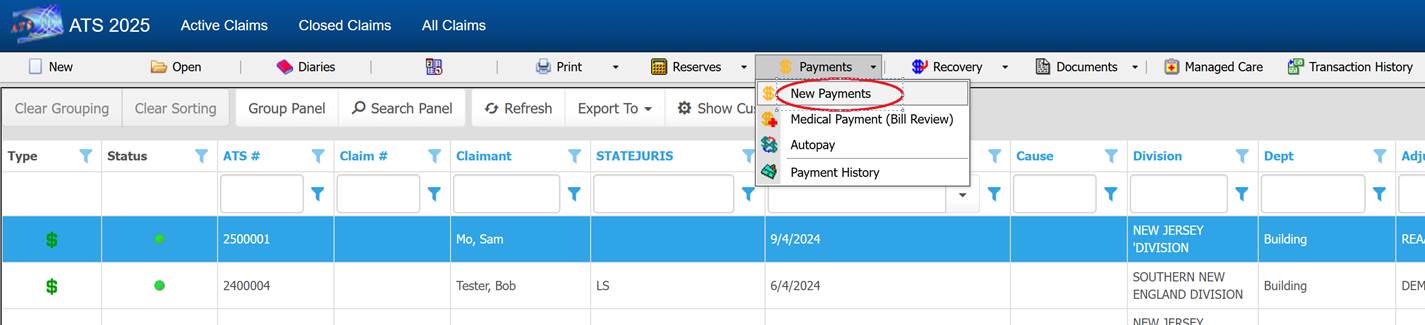
Accessing Payment Entry
The payment
entry screen, as with many other options, can be opened from the claim screen or
claim search page.

Payment Field
Customizations
Field
properties can be over-ridden on the payment screen to change the requirement
status, background color, default value, tab stop on/off, and visibility. Unlike the majority of
data entry screens in the system which allow users with authority to make
changes to these and additional properties, ATS support will need to assist in
changes made to the payment entry screens.
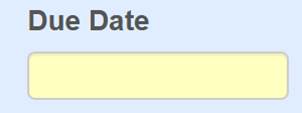
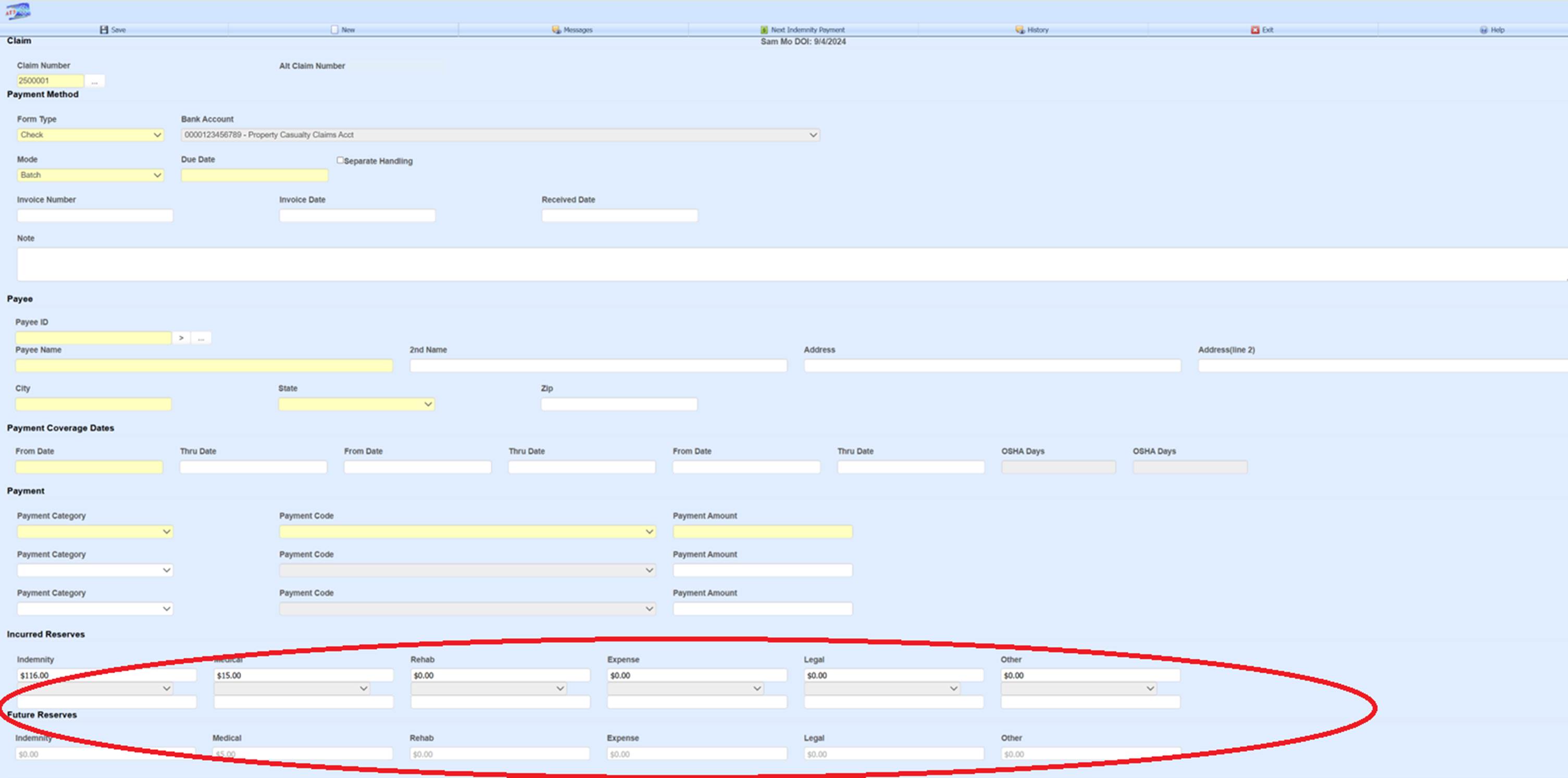
For this example,
the requirement status of Due Date has been
turned on and is thus now showing with a yellow background. The system default is not required for Due
Date.
Reserves
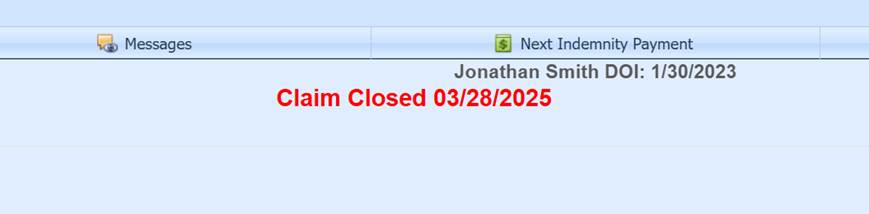
A red message
on top of the page will let you know if the claim is closed.
If the claim is
closed, and you decide to make the payment, the application can automatically adjust
the reserves depending on system parameter settings. Authorized users can adjust these settings from
the Maintenance option found on the ATS Console
page.

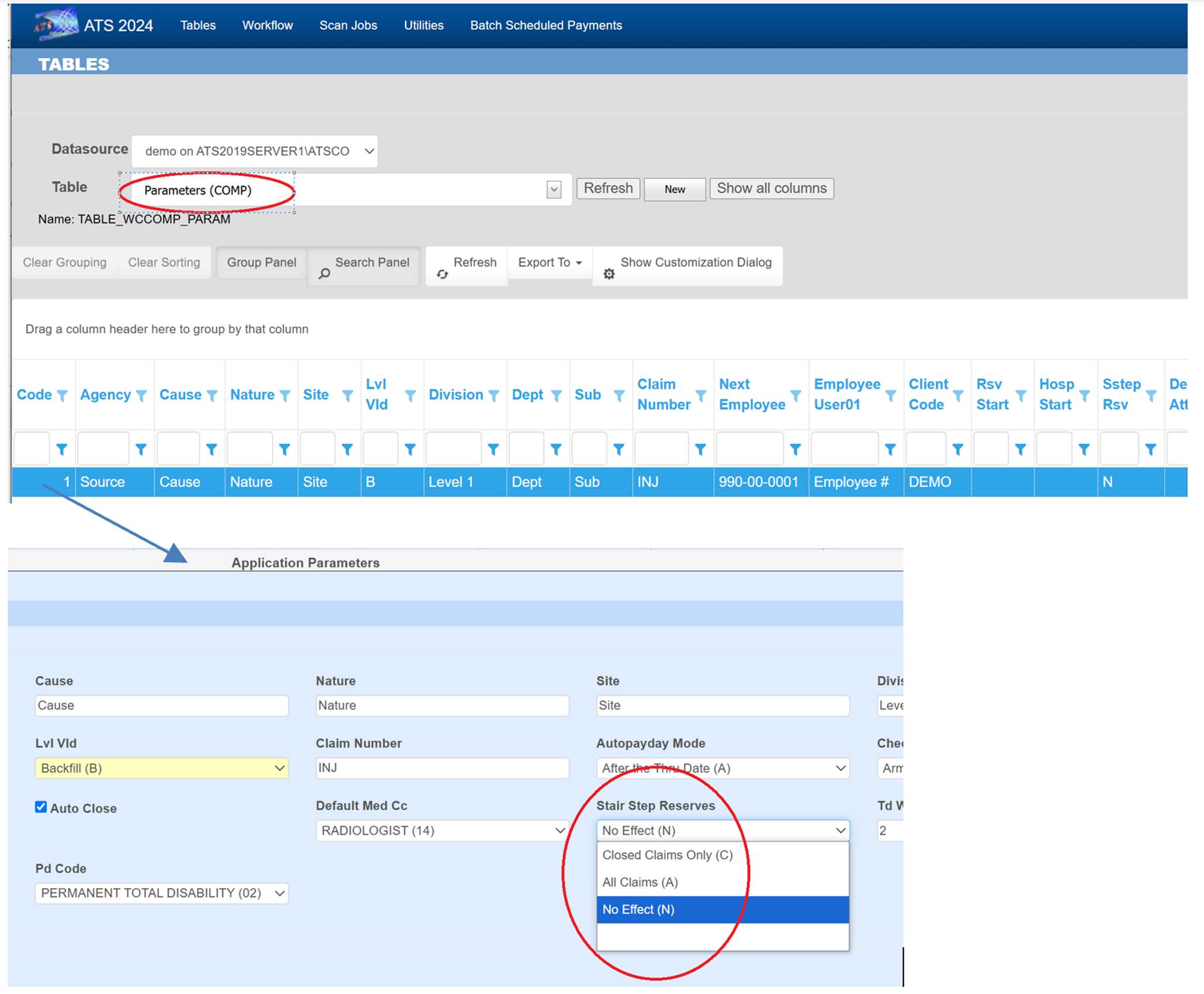
From the Table drop-down, select Parameters
(COMP) and double-click the record in the grid to edit. The Stair Step
Reserves drop-down has three options, C -
only closed claims, A - any time a payment
is being made that exceeds the current reserves, and N
– which forces the user to adjust reserves prior to the payment any time
reserves are insufficient. There is also
a Neg Rsv option
on the Parameters II page to allow payments to be made without reserves set.
Reserve information is displayed at the bottom of the
payment screen. Your system might not
be set to use all the reserve categories shown here.
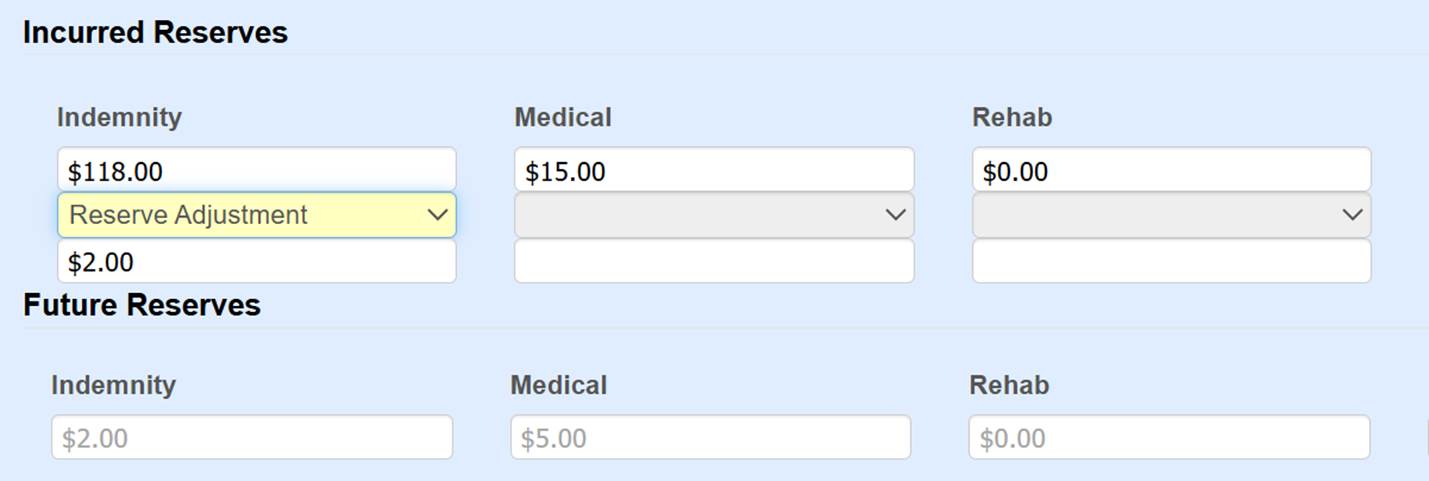
For users with
reserve authority, incurred can be adjusted on the payment screen.
Indemnity Payment Entry
Assistance
The Next Indemnity Payment button on the payment
screen tool bar will
fill the payment screen in with the amount, service dates, employee’s name,
address, reserves category, and cost center it determines should be used for
the next indemnity check.

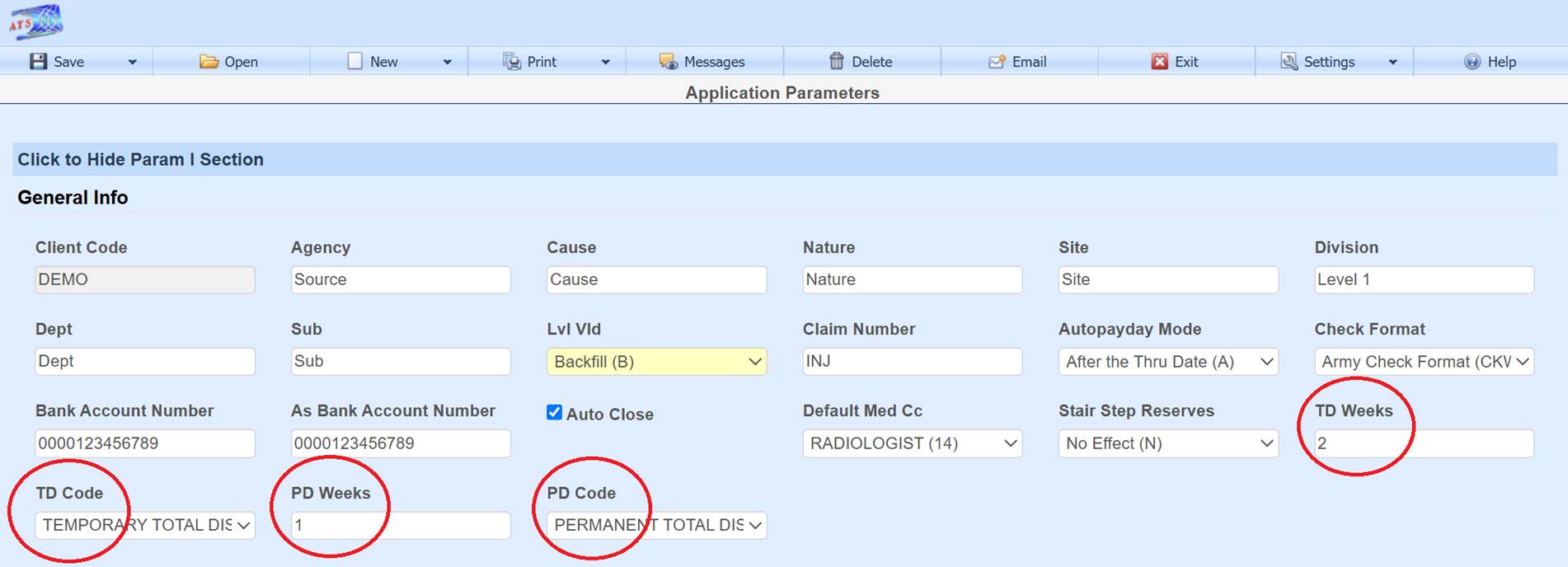
It uses fields TD Weeks, TD Code,
PD Weeks and PD
Code from the Parameters page depending on the claim benefit type and
the dates of the last indemnity payment to determine the service dates. The claim benefit rate and new set of service
dates are used to determine the payment amount.
Batch/Notate
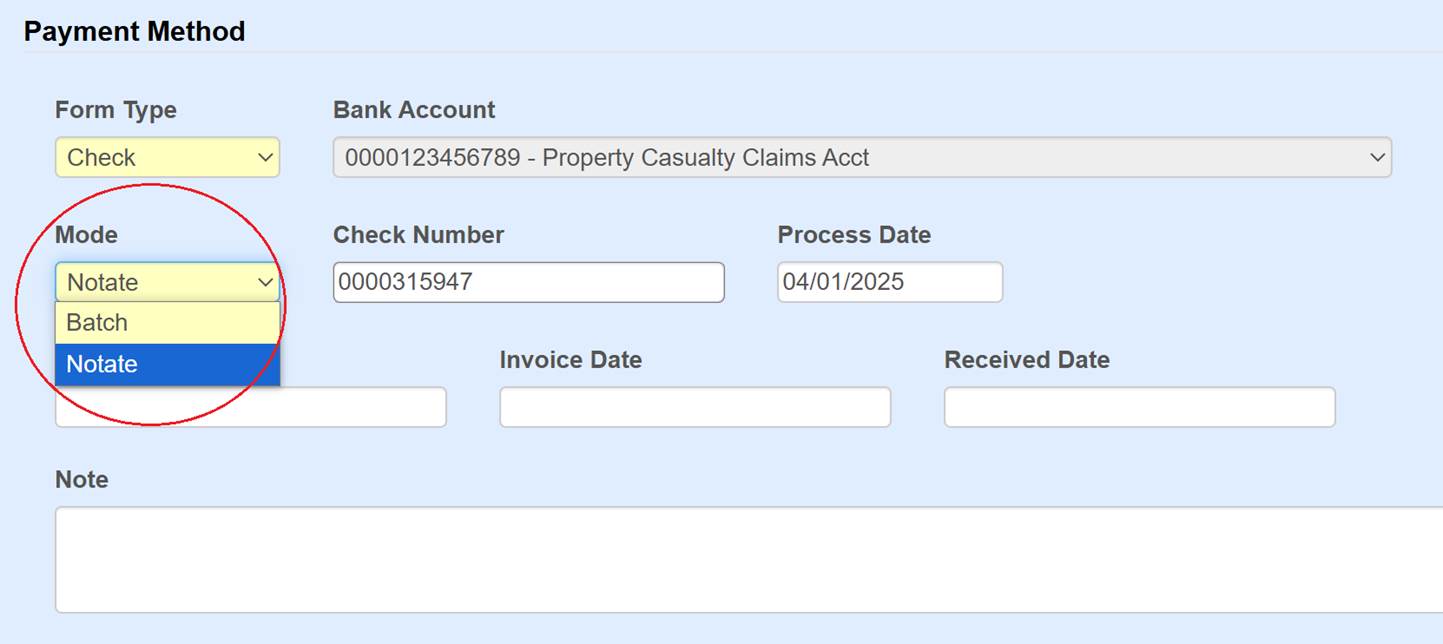
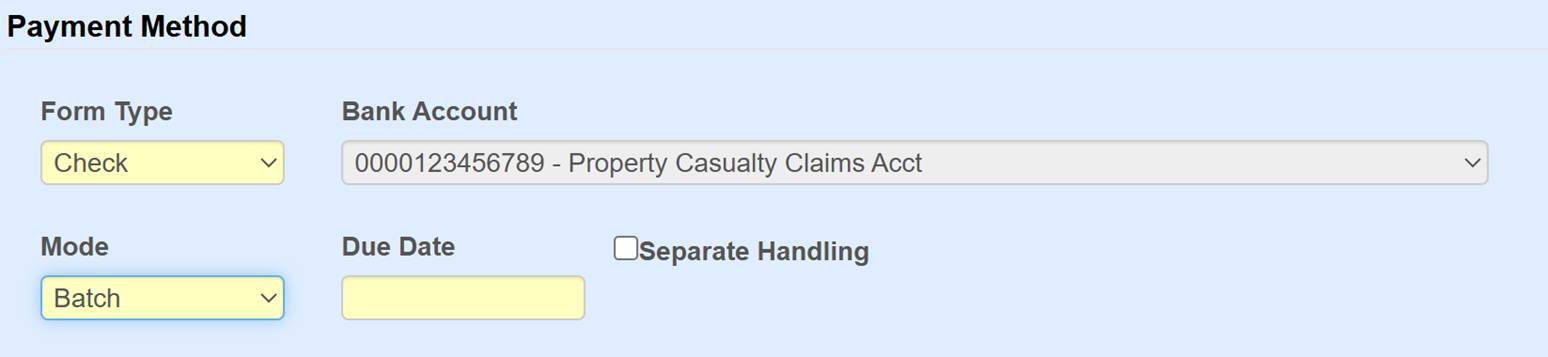
The Mode drop-down determines if the payment will be
batched for printing/export or notated directly to check history with the check
number and process date entered by the user.
If the payment
is being batched, then Due Date can be
entered to determine when the payment should be printed. The Separate
Handling field, which if set tells the printing process not to combine
this payment with any other payment records to the same payee.
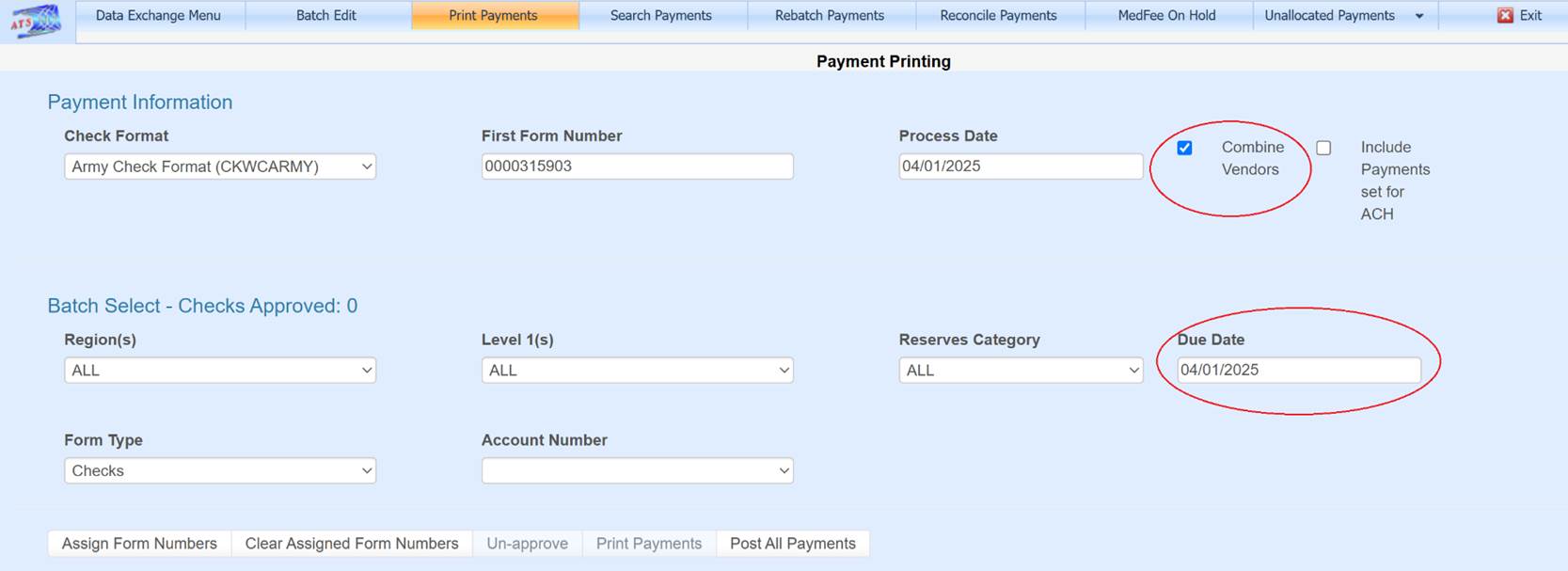
When checks are
printed from the Payment Printing page and the Combine
Vendors check box is checked, then payments with the same payee will be
combined into one physical check, unless the Separate
Handling field was checked when entering the payment. The Due Date field
on the Payment
Printing page will filter out batched payments unless the due date on
the payment record is set to nothing or the same date range.
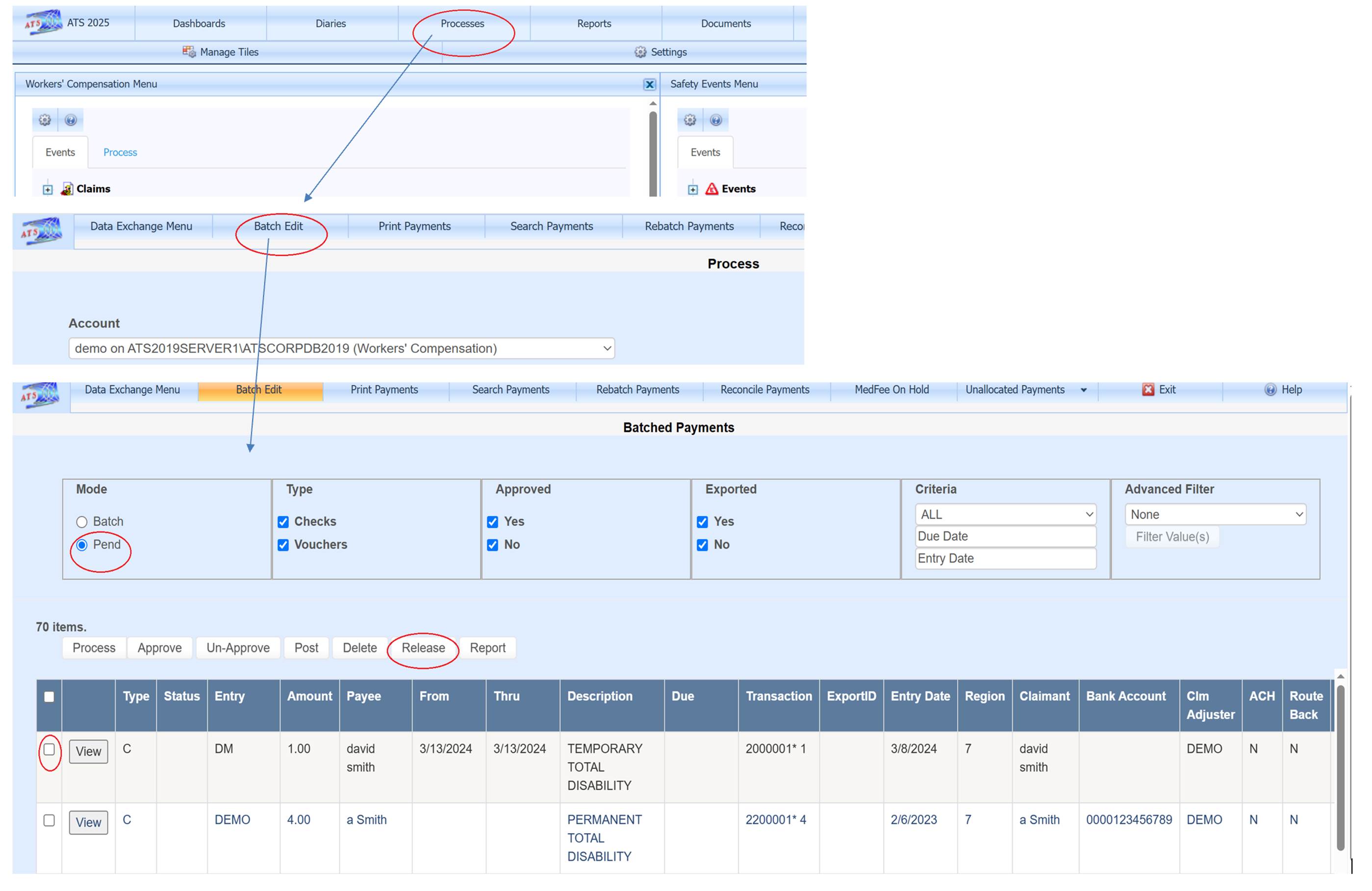
Pending Payment
If the payment
amount is larger than the user is authorized for, then the payment will be
pended where it can be released by a user with authority. Pending payments are released from the Batch Edit page found under Processes accessed from the ATS Console.
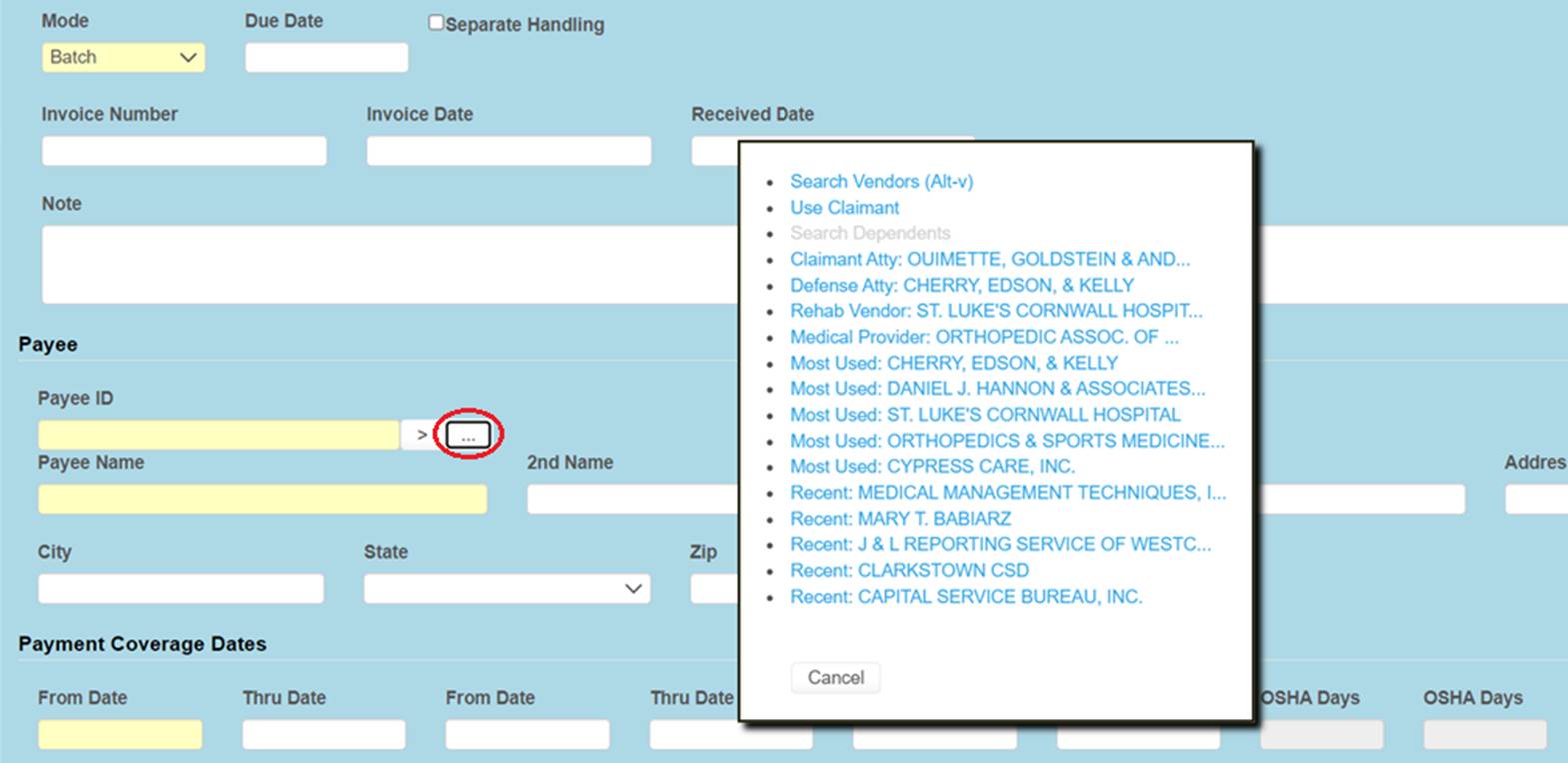
Payee Selection
The … ellipsis button next to the Payee ID field brings up a menu listing the top 5 most recent paid vendors, top 5 most used vendors, and vendors listed in the claim screen such as the claimant attorney. To search for a vendor, select option Search Vendors (Alt-v) or use the key combination Alt and V without the need to open this menu.
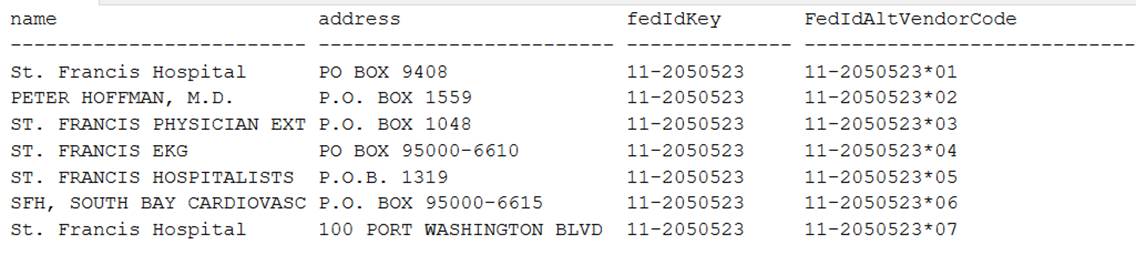
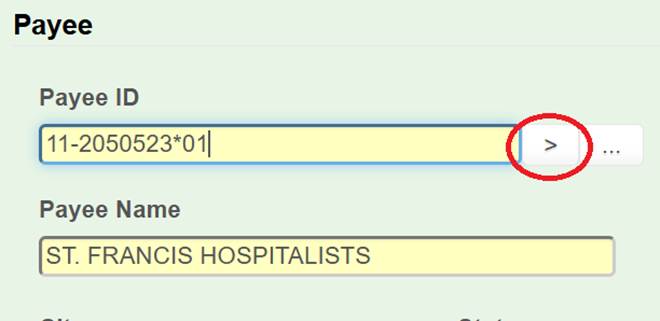
The > button next to the Payee
ID field will switch to the next active vendor record with the same
federal ID of what is currently entered in the Payee
ID field. In this example if the > button is clicked, the payee will change to Peter Hoffman using 11-2050523*02.
If just 11-2050523 is entered without
the *, then the first vendor record will be loaded, 11-2050523*01 if active. This allows the federal ID to be entered if
known without using the search menu.
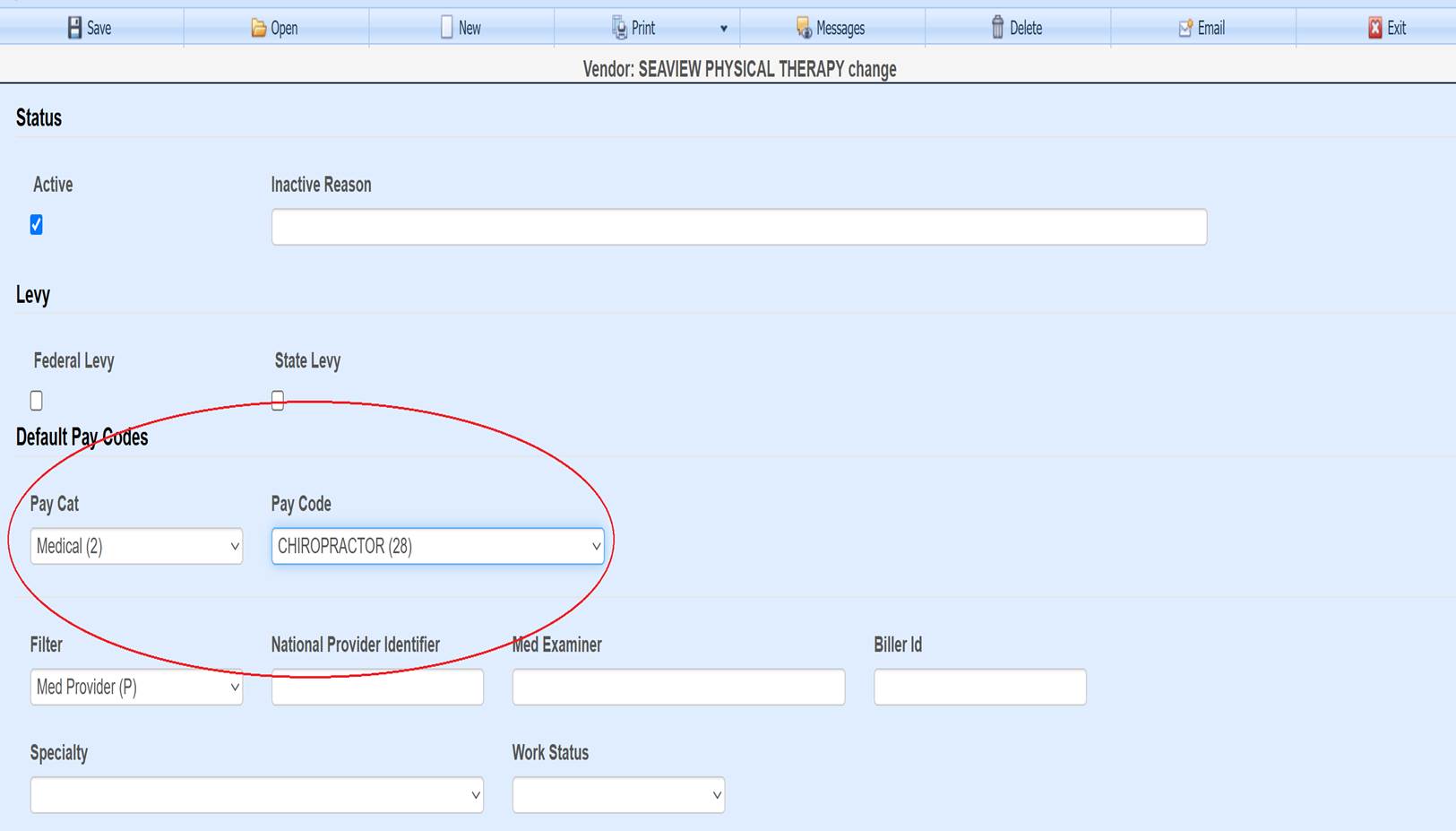
The vendor page
has a default payment category and code, which will be used by the payment
screen if set.
Entering Multiple
Payments
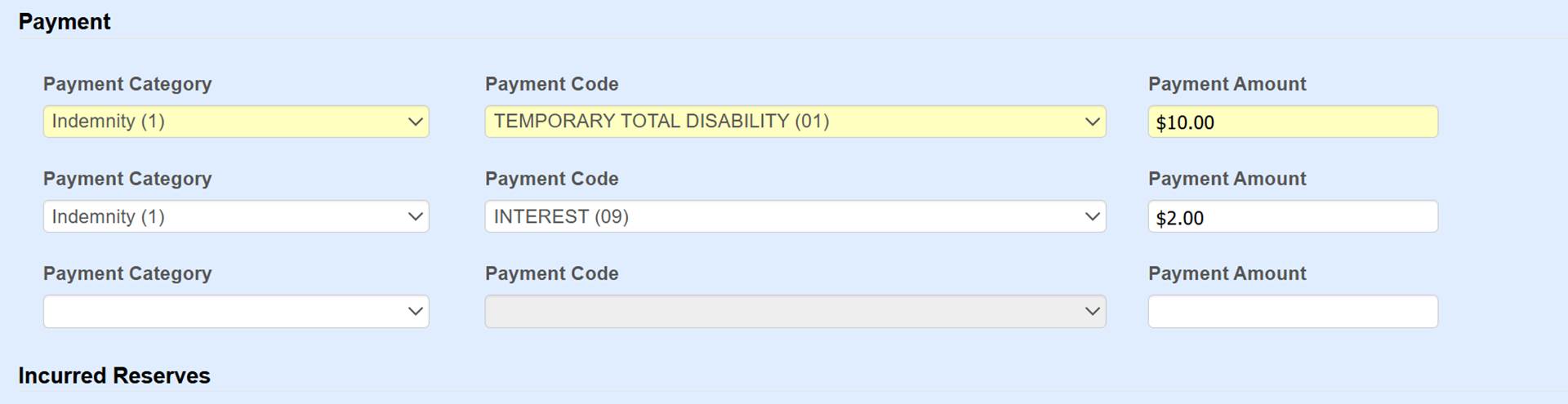
If there is
more than one payment record to be entered for the same payee, claim, service
dates along with all the other fields being the same, then they can be entered
here. The screen will grow thus
allowing an unlimited number to be entered.
A separate payment record will be created for each amount entered here
upon save.
Once a payment
is saved, the screen will be cleared to allow another payment. The vendor’s information and service dates
will remain unless the system settings are set to clear them. ATS support can help with this
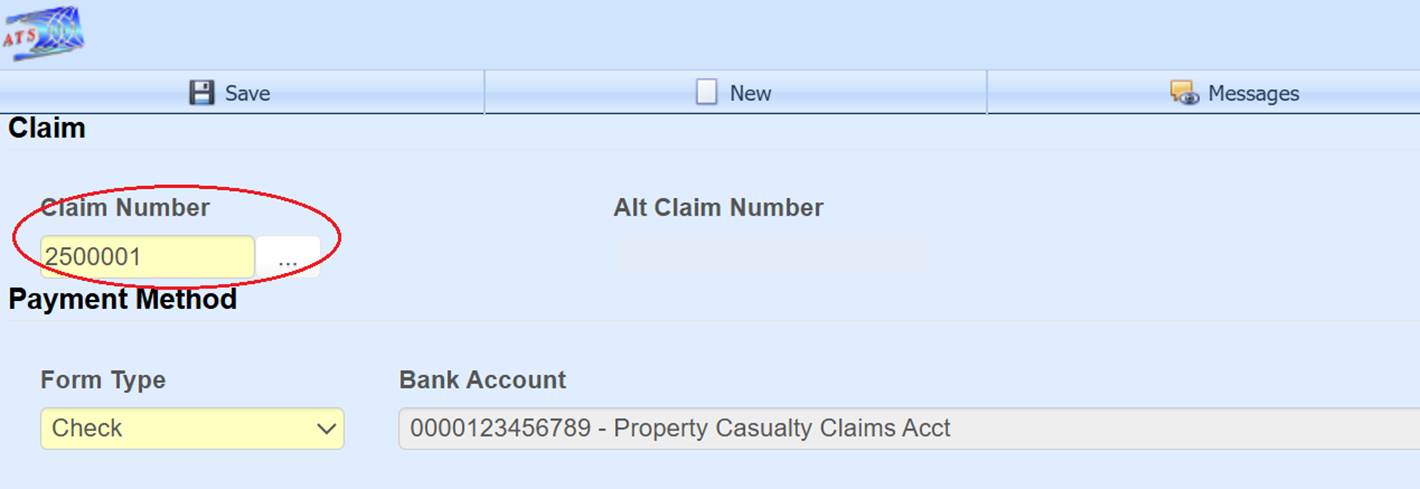
adjustment. The Claim Number field on the upper left of the screen allows you
to switch to another claim, thus once you’ve saved a payment, another can be
entered for a different claim without exiting the page. The Messages button
on the toolbar will show a list of payments entered for the session.
Wage Continued
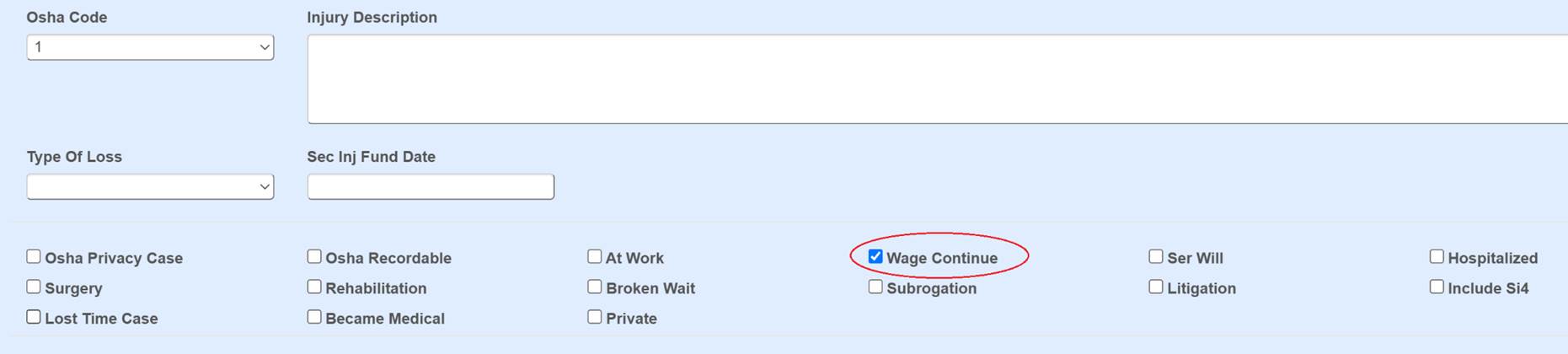
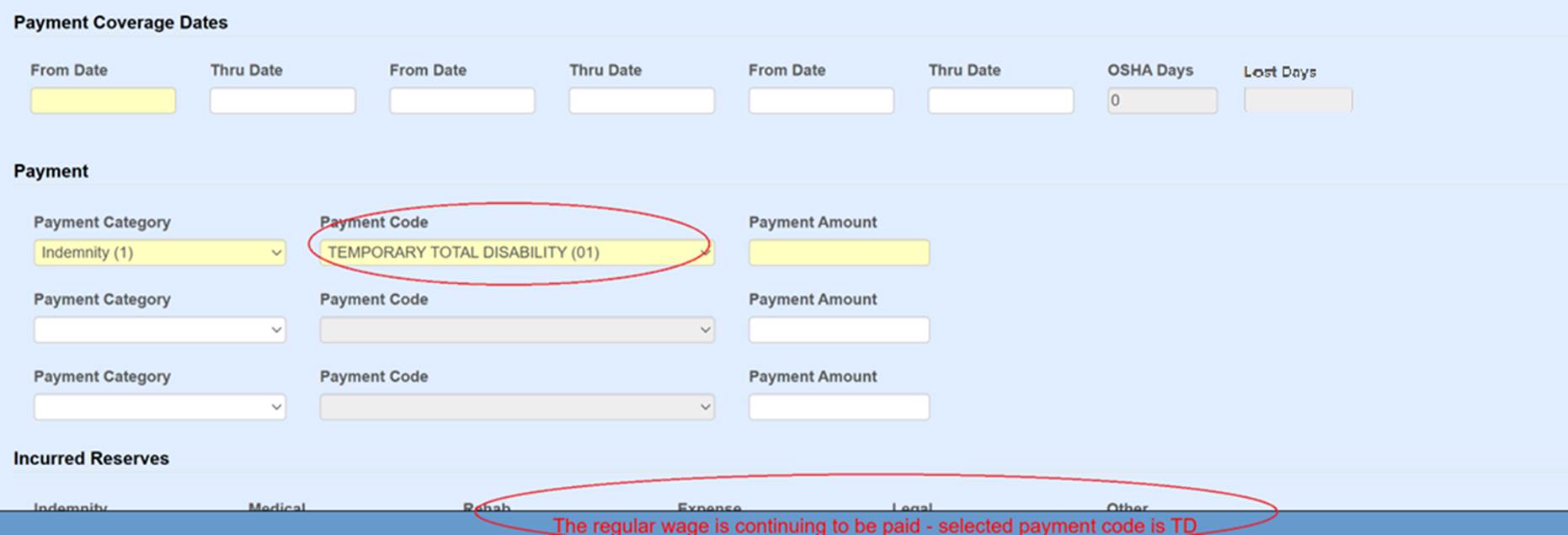
If the Wage Continued checkbox is set in the claim record,
and a TD or PD type payment code is selected when making the payment, then a
message warning the user will appear on the status bar explaining that the
employee is receiving their salary in lieu of worker’s comp benefits.
Osha Days
When making a payment to the employee for reserve category 1-indemnity
or 3-rehab, the program will check the field Grouper
in the payment codes table for the specified payment code entered for the
payment. The payment code records can be edited under Maintenance on the ATS Console.
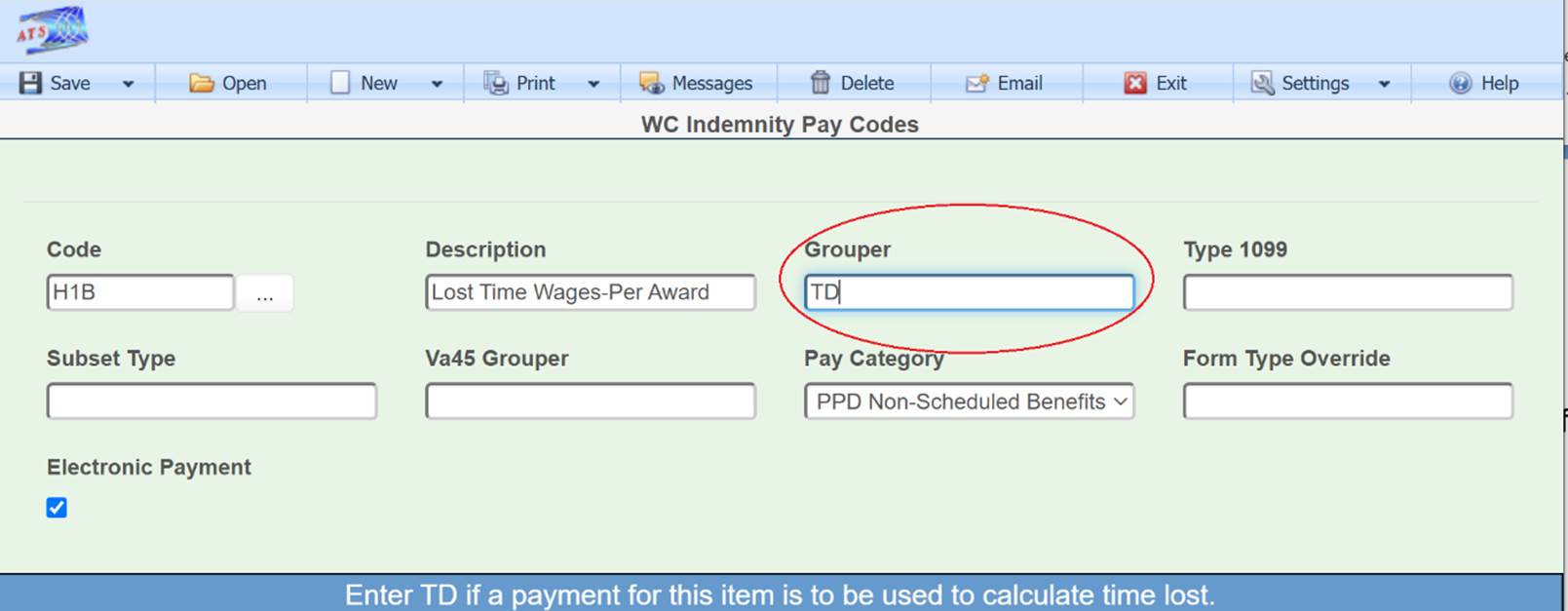
If this value is “TD”, then the From
Date/Thru Date fields are used to
calculate OSHA Days based on a calendar week. This value
will be displayed on the screen and added to the existing values in the claim
record.

When an employee performs another job or the same job with
restrictions due to an injury or illness, and the job pays less than usual, the
employee should get a comp payment to make up the
difference. In that case the temporary disability payment should be made with a
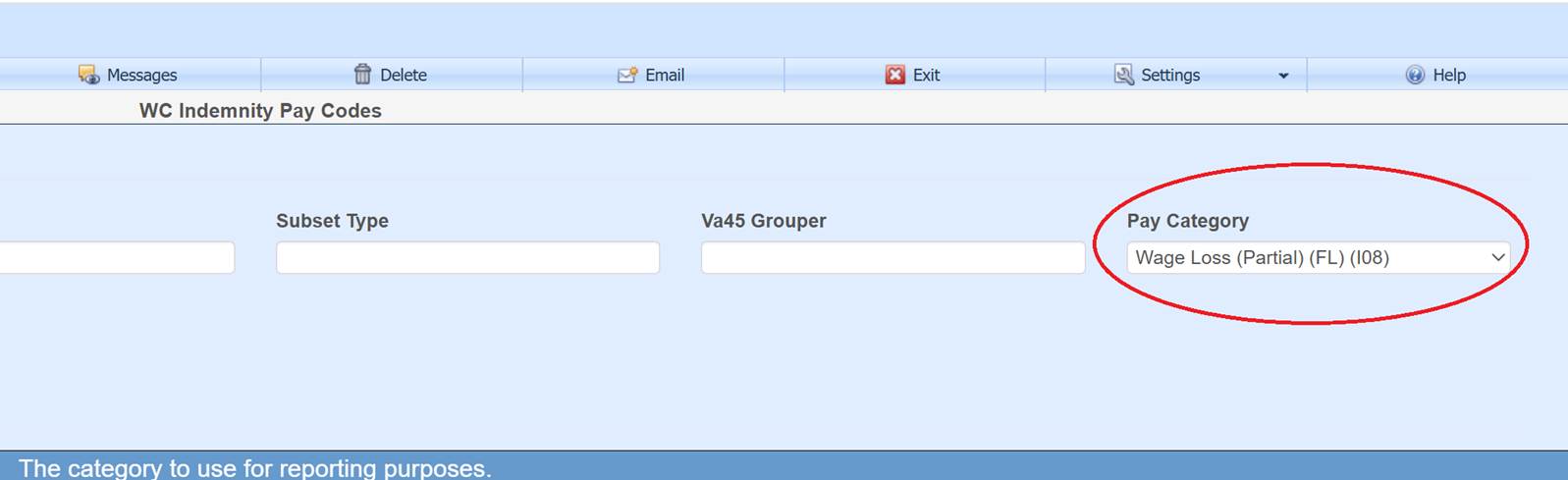
pay code that contains I08 (wage loss) in the report category so the days in
the from/thru period will be ignored when reporting to OSHA. If this feature is not used and the
grouper is TD, then days would be counted as lost time when the employee is
really at work.
Duplicate Payment Warning
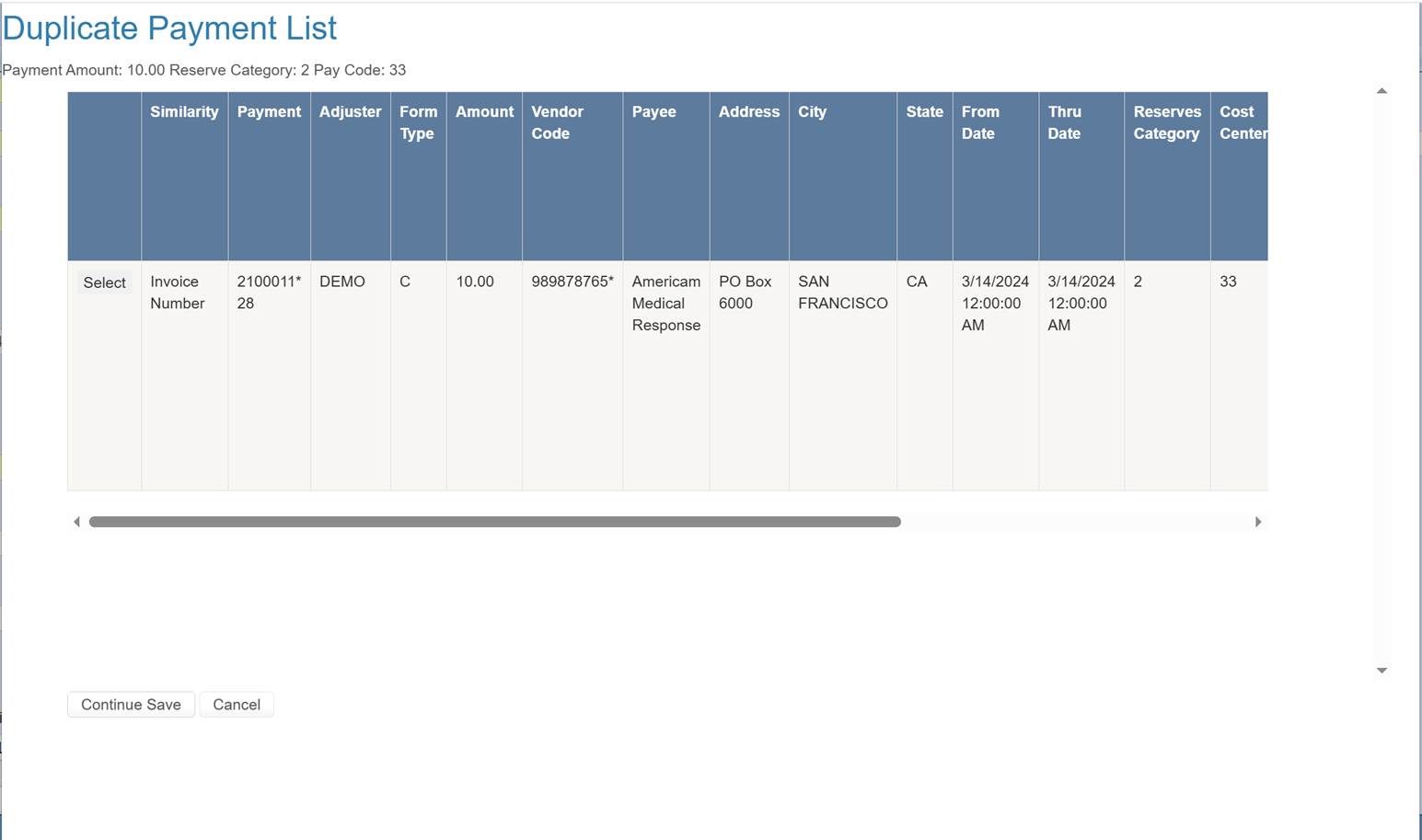
Upon save, a list of existing payments with
the same claim number, reserve category, and ((similar
service dates and the same payment code) or (invoice number and vendor)) will
be displayed in a warning pop-up with an option to continue to save or cancel. Payments can be opened on this list with the Select button.
Print
The toolbar Print
button will list records that have been saved in the current session and
can be printed to a Crystal report.
