Column Properties
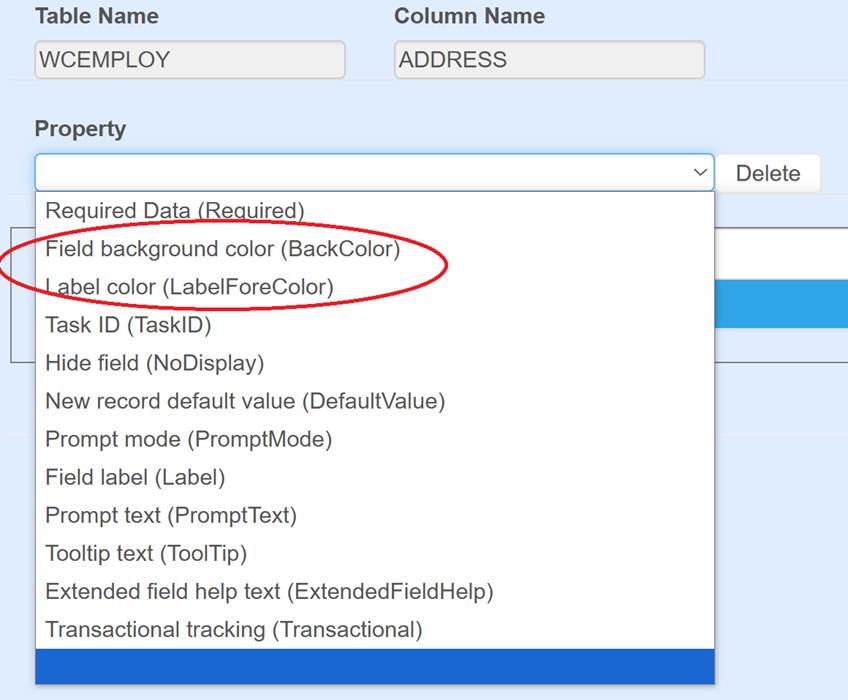
There are several screen field property over-rides which can be set pertaining to a specific database table column, such as address in the employee table. Property values set here affect all users using data entry screens which contain the field.
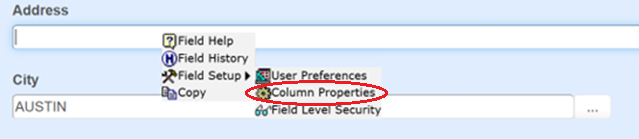
For example, to set the address field as required, double-click in the field’s textbox to display the context menu. Select Column Properties from the Field Setup sub menu to open the Screen Field Settings page.
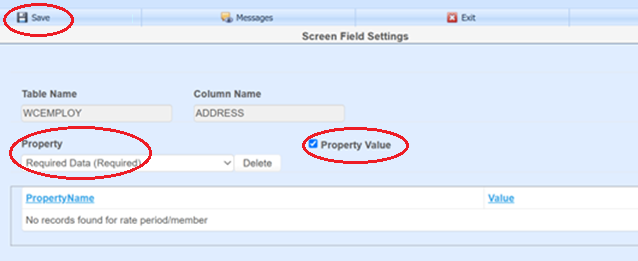
Select Required Data (Required) from the Property dropdown, check the Property Value checkbox, and click Save.
Any field assigned to employee address will now be required on pages that use it. The change will appear when the employee page is refreshed or opened next.
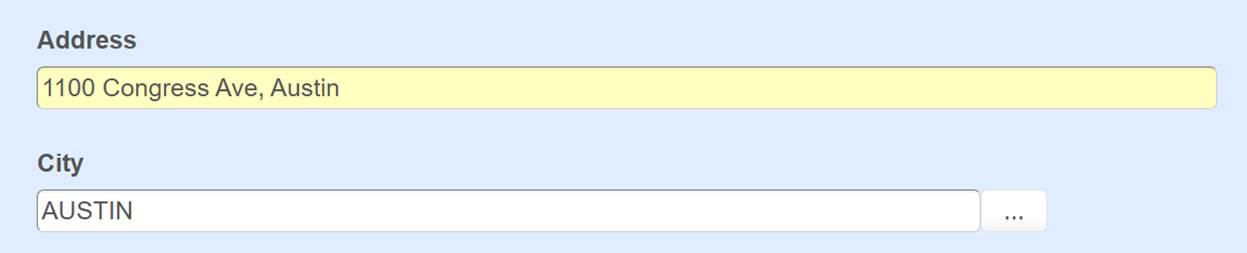
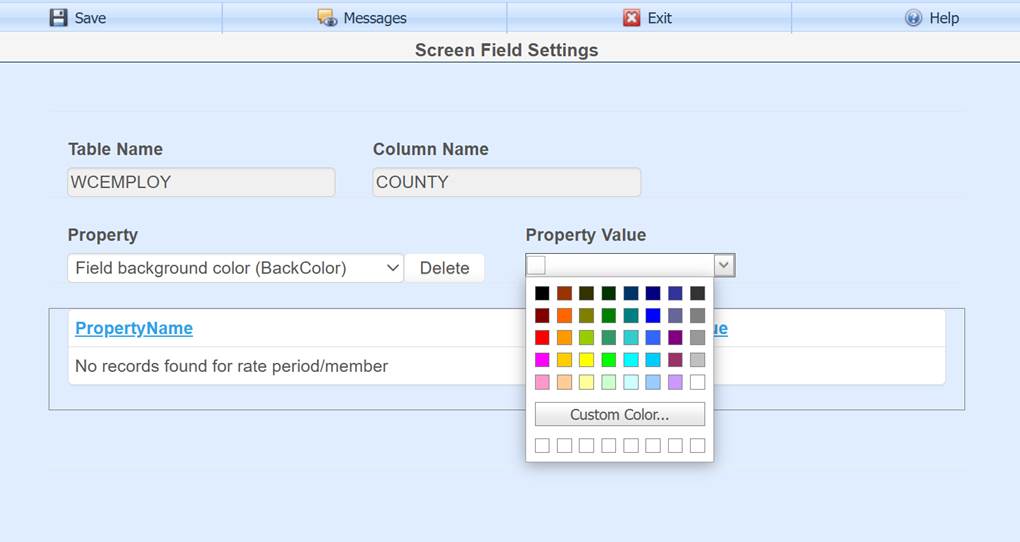
Field background and label colors can be set.
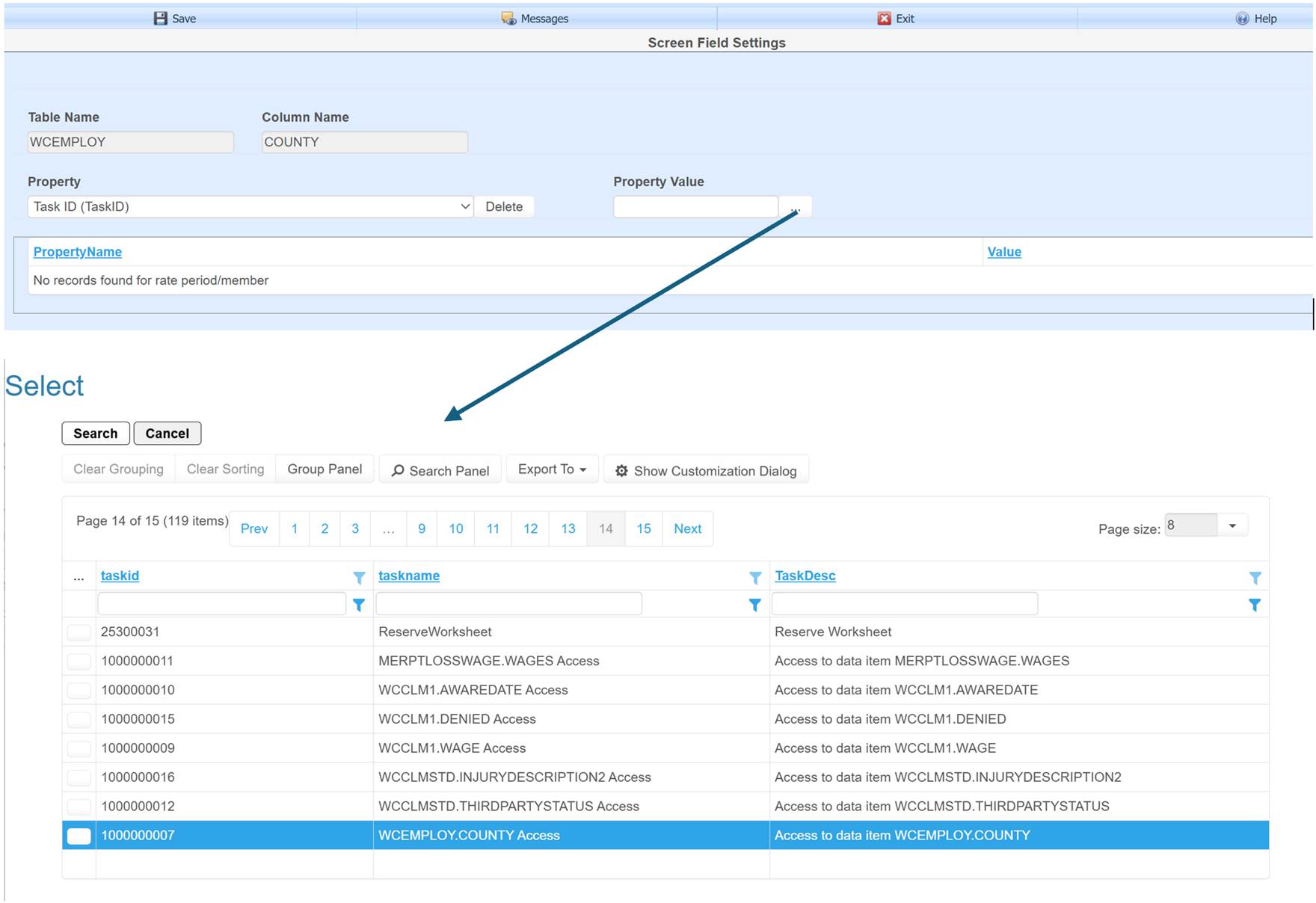
The Task ID property is used to set field security. An existing task can be selected to determine which users can view and/or edit the field.
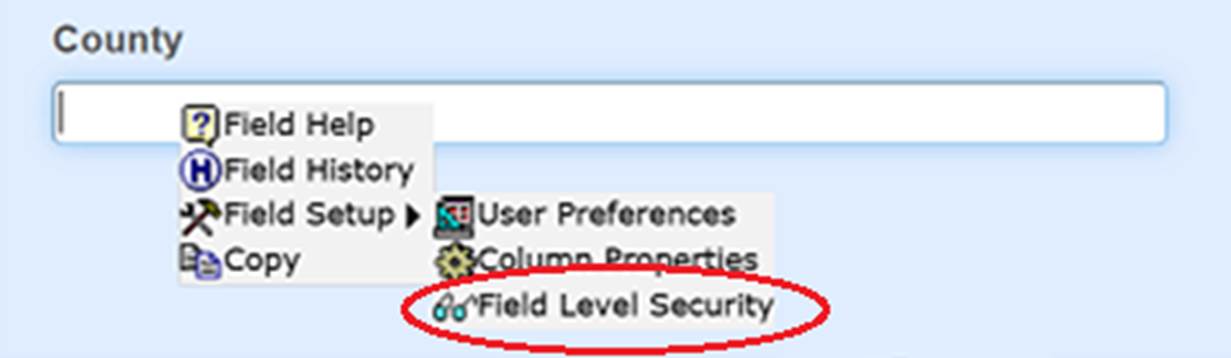
The Field Level Security context menu option is used to create a new user defined task and assign user or group permissions. User defined tasks have an ID starting at 1000000000 and standard system tasks start at 1.
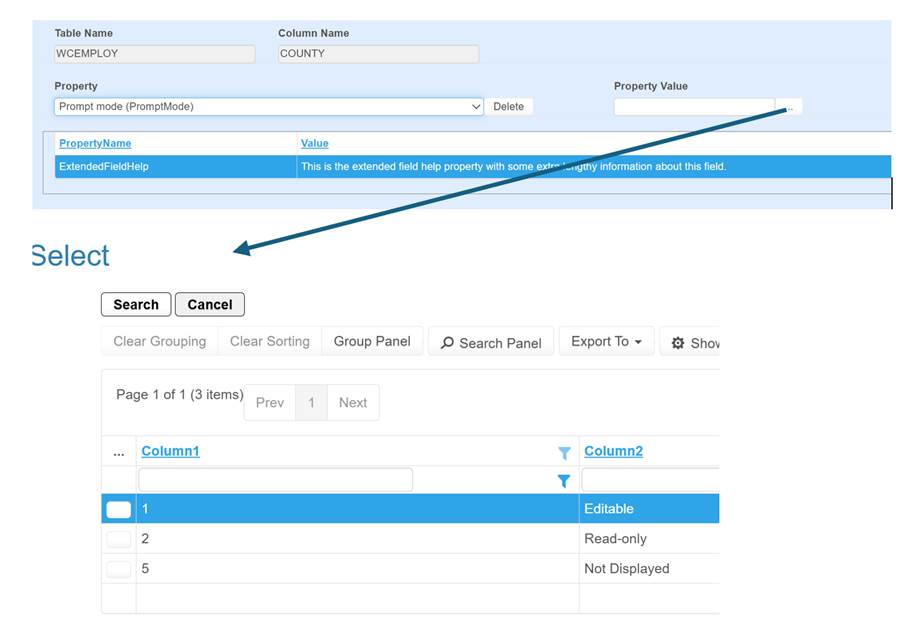
The Prompt Mode field property has 3 options to allow editing, read-only and hide.
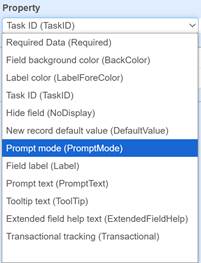
The label, prompt text (which is the message displayed at the bottom of a page), and tool tip can be over-ridden with properties.
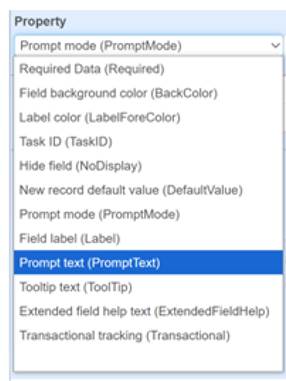
The Extended Field Help
property allows extra information to be entered to explain the use of a field
beyond the prompt text, tooltip and label.
The user can read the extended help by selecting the Field Help option from the field context menu.
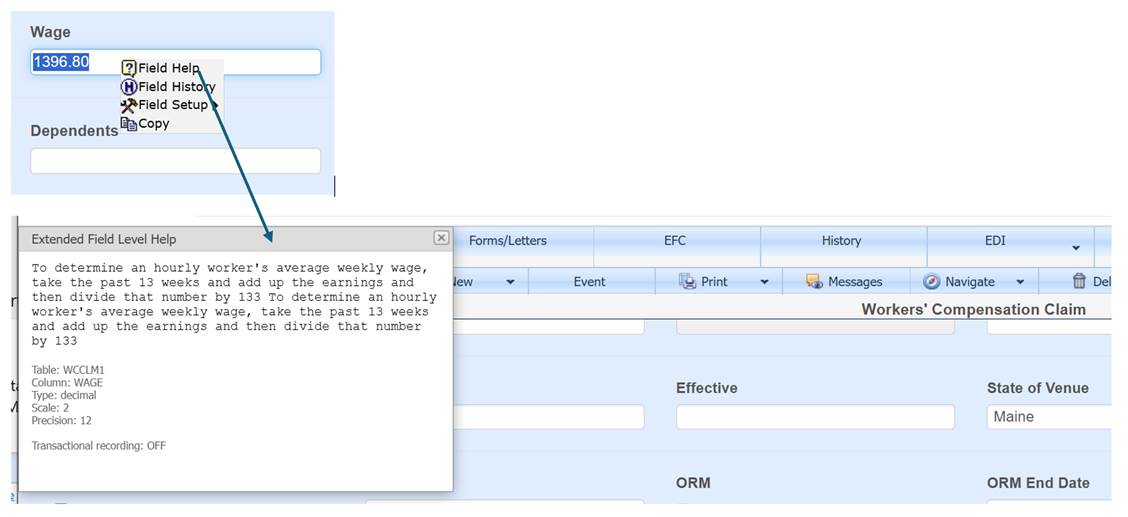
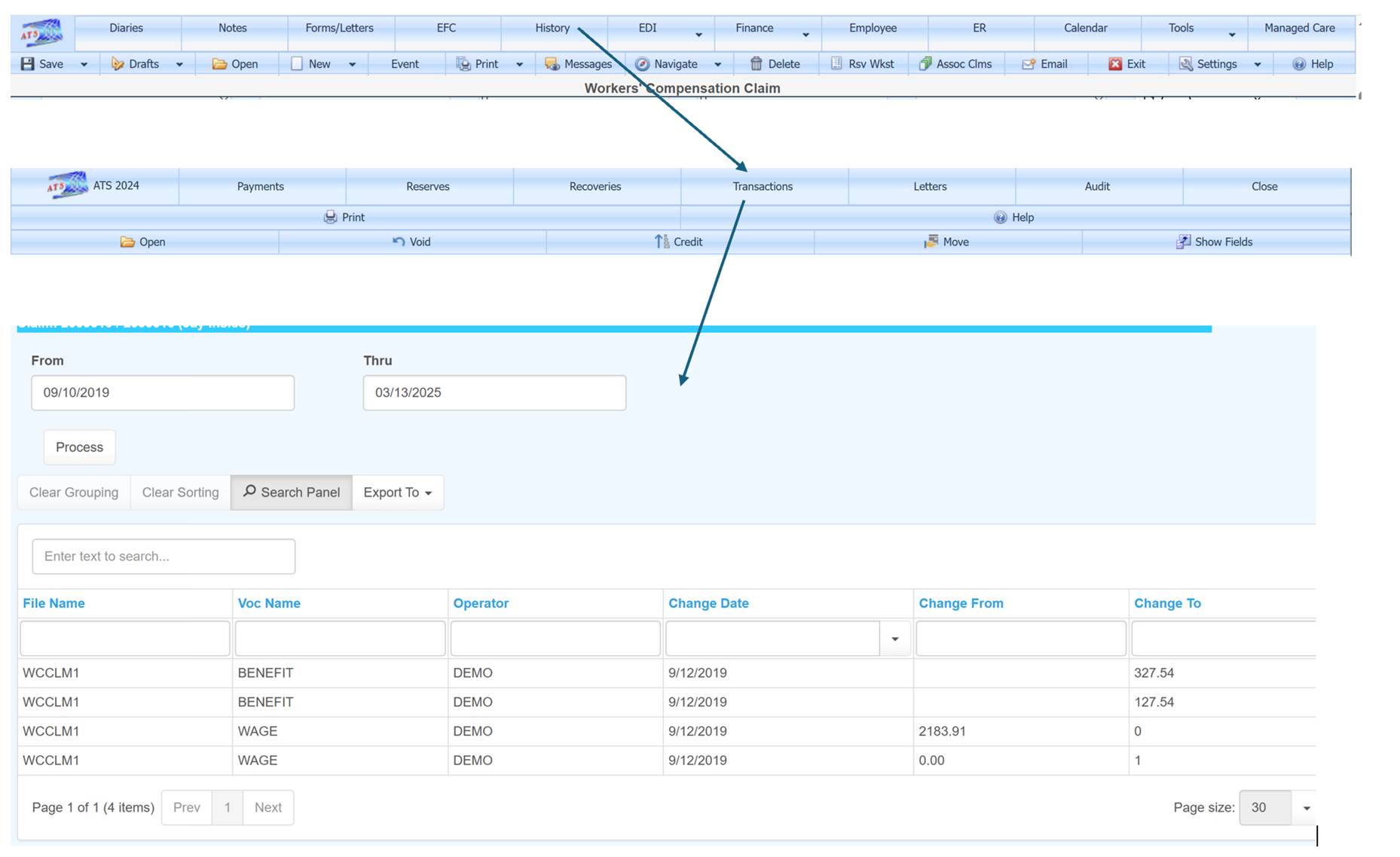
The transactional tracking property can be set to record the date of value changes to a field. The status can be seen by using the Field Help option. There is a Transactional recording label indicating ON or OFF. The history of data changes can be seen by selecting the Field History option on the context menu.
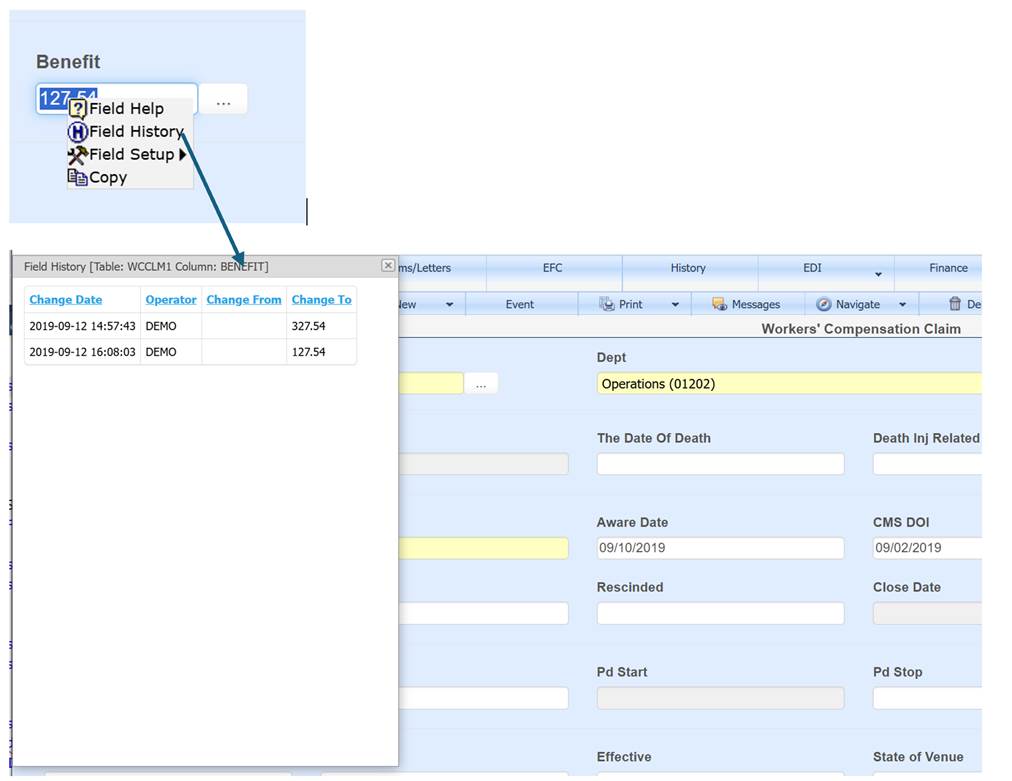
Historical field changes can also be seen under the claim screen History option.