User Screen Preferences
Users can adjust screen colors to help reduce eye strain or just to have a different look occasionally. Larger screens such as the claim screen are set up in accordion style to allow sections of the screen to be hidden and then set as a default if desired.
Themes
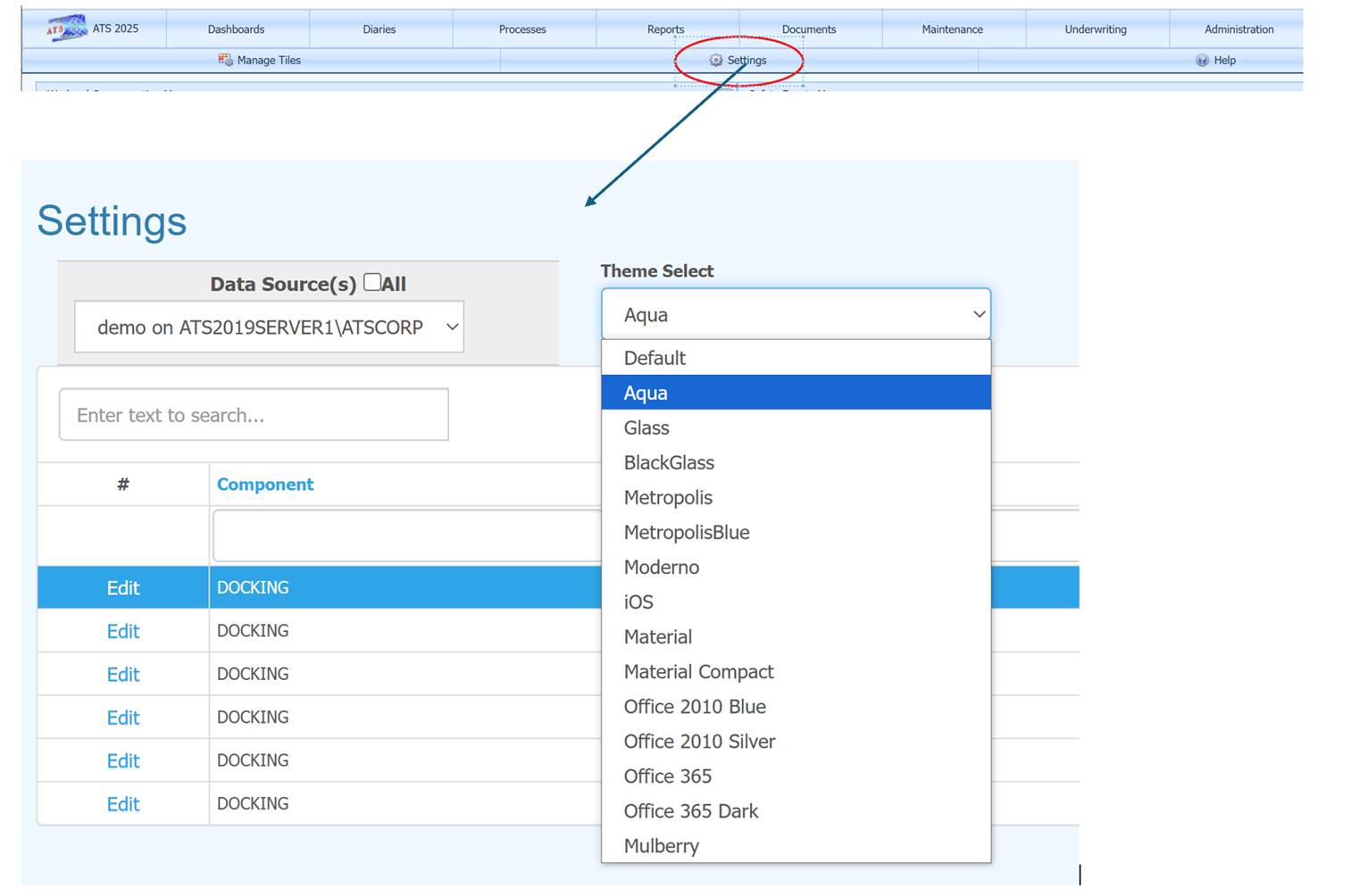
The Settings button on the ATS Console toolbar opens a page with a list of themes allowing users to easily select their preference of color and style.
Advanced Options
Another option with greater control over colors and the look of screens is the User Screen Preferences menu item found under the Settings tool bar button on most data entry screens. Adjustments can be made for a specific screen or as a default for all. As with themes, any change only affect the user making the change.
In this example, the User Screen Preferences option is selected from the claim screen.
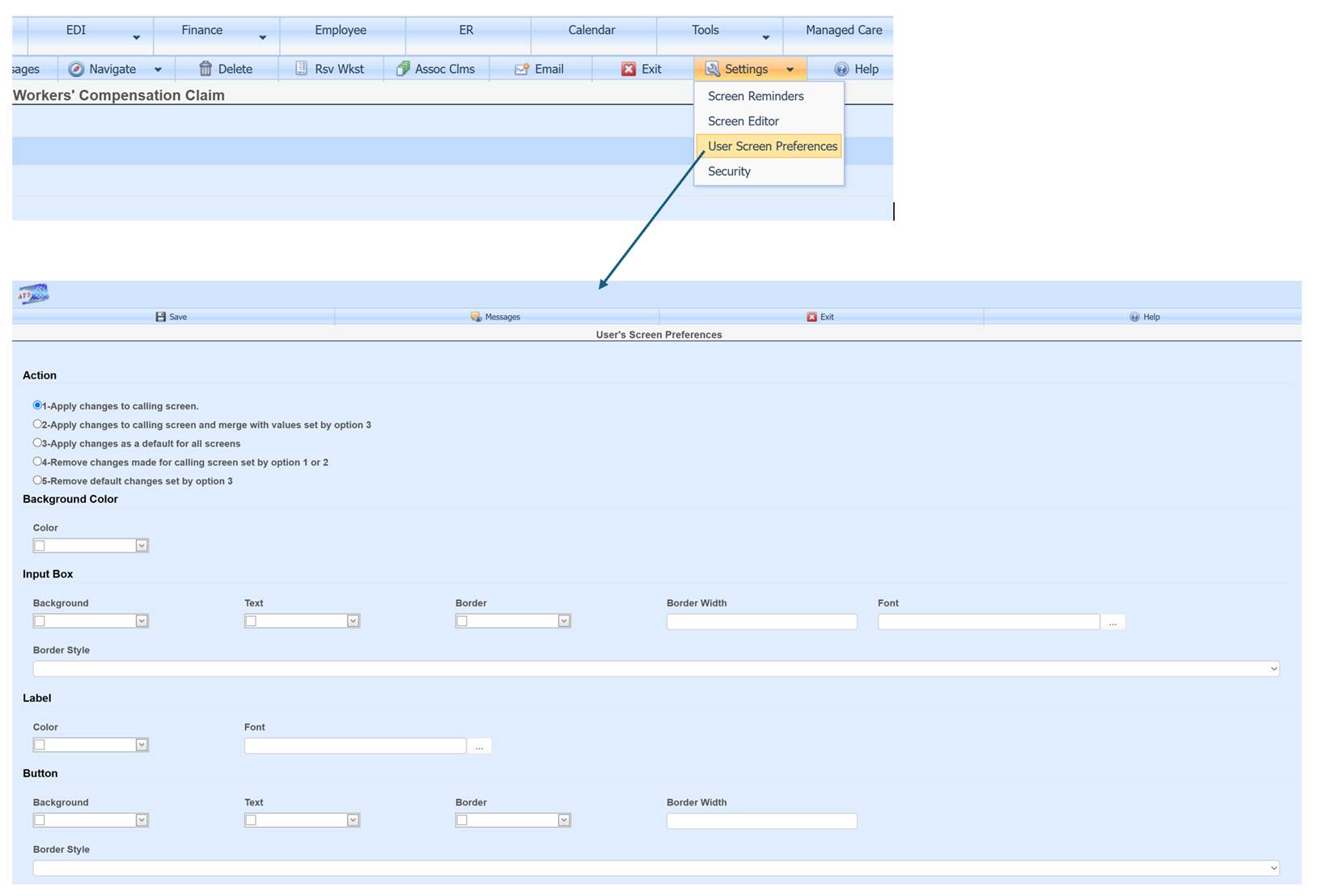
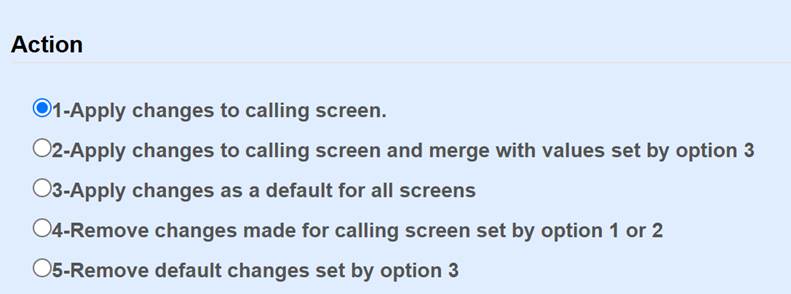
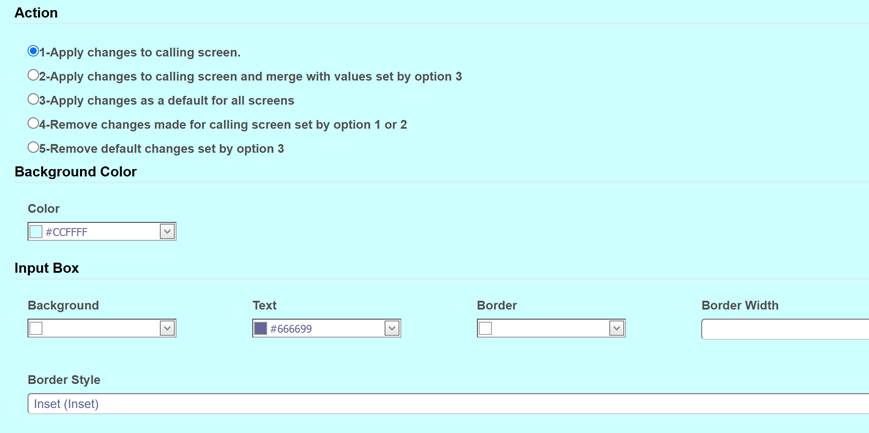
Changes can be made to the specific screen the user is on when they open the User Screen Preferences option (in this case the claim screen), or to all screens as a default.
1-Apply changes to calling screen causes all fields on this page, blank or filled in with a value to over-ride any changes made with option 3. For example, if the background color was set to black with option 3, and the background color was left blank with this option (“1-Apply changes to calling screen”), then the background color would not be black. It would default to the theme color selected from the ATS Console settings option or to the system default if no theme is selected.
2-Apply changes to calling screen and merge with values set by option 3 causes only fields on this page which are filled in with a value to over-ride any changes made with option 3. For example, if the background color was set to black with option 3, and the background color was left blank with this option (“2-Apply changes to calling screen and merge with values set by option 3”), then the background color would be black.
3-Apply changes as a default for all screens sets any changes made on the User Screen Preferences page to become a default for all data entry pages.
4-Remove changes made for calling screen set by option 1 or 2 This option will erase all changes previously made to the page which called User Screen Preferences. For example if the User Screen Preferences menu option was selected from the worker’s comp screen, then all changes made specifically to this page would be removed and only changes set by option 3 and the theme selected would apply.
5-Remove default changes set by option 3 This option will erase all default changes, but leave specific page changes such as what may have been made to the worker’s comp screen.
As an example, this is the claim screen before changing the background color, text color and boarder style:

Changes made:
Claim screen after change:

Navigation
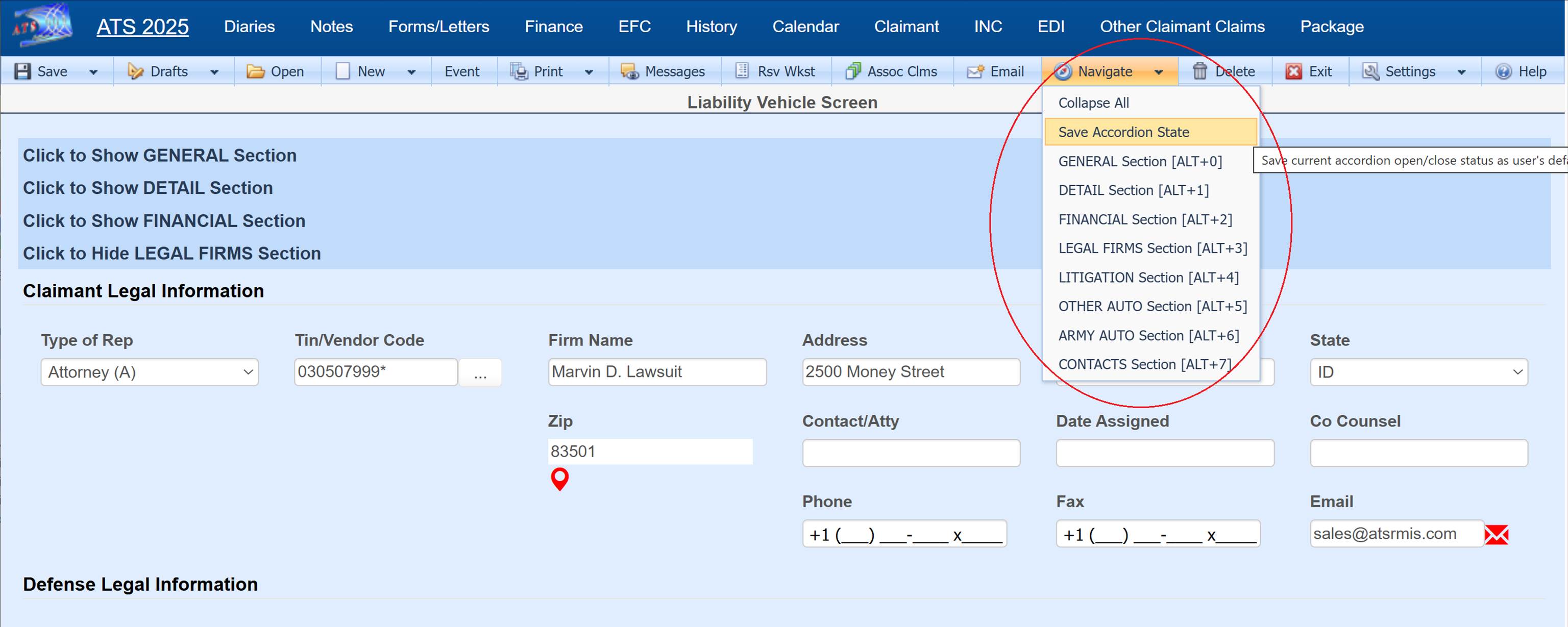
Accordion style screens can hide or show sections of the screen by clicking on Click to Hide or Click to Show.

The screen can be defaulted to open with certain sections
opened or closed. Once the user has set
the screen as needed then it can be saved as the default by clicking on Save Accordion
State from the Navigate toolbar button. This menu also allows users to be directed to
specific sections as well as showing hot keys that can be used instead of the
menu.