Medical Fee Module
The Medical Fee module is an optional add-on feature designed to prevent medical overcharges. Each line item on the invoice is reviewed based on the state’s fee schedule, the DOL’s OWCP schedule, and/or the Usual and Customary Reimbursement (UCR) value depending on the set up. A vendor’s custom fee schedule may also be used. The UCR module is an optional feature and not part of the standard ATS/Comp Medical Fee product. Bundling and unbundling is another optional feature that is available. The data to implement any of these features is available from a third party.
Making a Payment
Fields on the entry screen:
|
Field Name |
Description |
|
Form
Type |
The
type of payment, either check or
voucher. |
|
Invoice
Number |
The
invoice number being paid. |
|
Invoice
Date |
The
date of the invoice. |
|
Received
Date |
The
date the department received the invoice may be entered for accounting
purposes |
|
Mode |
The
status of the payment can be Batch to be printed/exported
later, Notate which writes the payment
record to check history with a specified form number and processed date, or
Hold which causes the data entered to be saved without creating a payment
record so that it can be edited later.
Hold is often used with importing medical payment data so that the
users can review and edit data before batching for payment. |
|
Image
ID |
Optionally
links the payment to bill images in our electronic filing cabinet. |
|
Note |
A
note to be displayed on the check or voucher. |
|
Payee
ID |
The
ID of the vendor, claimant, or dependent being paid. |
|
Separate
Handling |
If
checked, the payment will not be combined on the same printed check for
payments made to the same vendor. |
|
ICD
Codes |
The
ICD code(s) from the invoice A-L. |
|
Field Name |
Description |
|
|
|
|
Service
Zip |
By
default, the vendor’s zip will be used
to set the service zip code for where the service was performed. This zip
code will not only determine which fee schedule is used, but also the tax
rate if tax is to be applied as in New Mexico. |
|
Inpatient |
A
check indicates that the employee has been admitted in
a facility and treated as an inpatient. |
|
Line
Item |
The
number of the line item. Use the arrow keys to enter another item or review a
previous one listed in the grid below. |
|
Service
From/Thru |
The starting and ending date of the billing
period. (The default ending date is the same as the From Date.) These dates
will determine which particular fee schedule to use.
(It must be after the open date on the claim.) For
your convenience, the previous From/Thru dates will
be displayed as you enter new line items. |
|
ICD
Reference |
Letters
A-L to specify which ICD codes applies to
the specified CPT code for the line item. |
|
Code
Invoiced |
The CPT code for the item. Normally, this must be a
valid code (in the fee schedule) in order to
continue. The exception is “00000”, which may be used to enter a
miscellaneous item that is not found in any fee schedule. |
|
Modifiers |
Up
to three modifiers may be applied to the CPT code. |
|
Specialty |
When
there is a specialty associated with the CPT code, it may be selected from a list of
choices by clicking the Ellipsis button. |
|
Qty |
The
number of units billed for this line item.
|
|
Invoiced
Amount |
The amount billed for the procedure. |
|
Accepted
Amount |
The Maximum Reimbursable Amount (MRA) is used
if it is less than the amount invoiced. As the amount of each line item is
accepted, the total value in the Payable field will be incremented. Note
that if the Bundling/Unbundling feature is in use, the program will check
for major or comprehensive procedures that consist of a
number of individual procedures. For example, the CPT code 31505 (larynoscopy
diagnostic) consists of many other procedures, one of which is 36000
(microsurgery add-on). If both are on the same bill, the program will detect
that the "code 36000 is part of the comprehensive procedure code
31505" and enter ZERO in the accepted amount for line 36000. The program
will also look for mutually exclusive procedures (e.g. 27177 and 11010) that
are not allowed on the same bill. |
|
Override |
An
override code to explain why the amount to be paid is different than the
amount billed. Press the Ellipsis button for the user-defined choices, which
are maintained from the console Maintenance menu item. |
|
Futures |
The
amount available in the claim’s (future) medical reserves. See below for details when the amount is insufficient to cover the
payment. |
|
Total
Payable |
As
line items are
entered and accepted, the
program will adjust this
value accordingly. When the record is saved, this amount will be used
to update the paid to date and future reserves in the claim. |
|
Rate
Table |
The
program will display the name of the fee schedule table in use. |
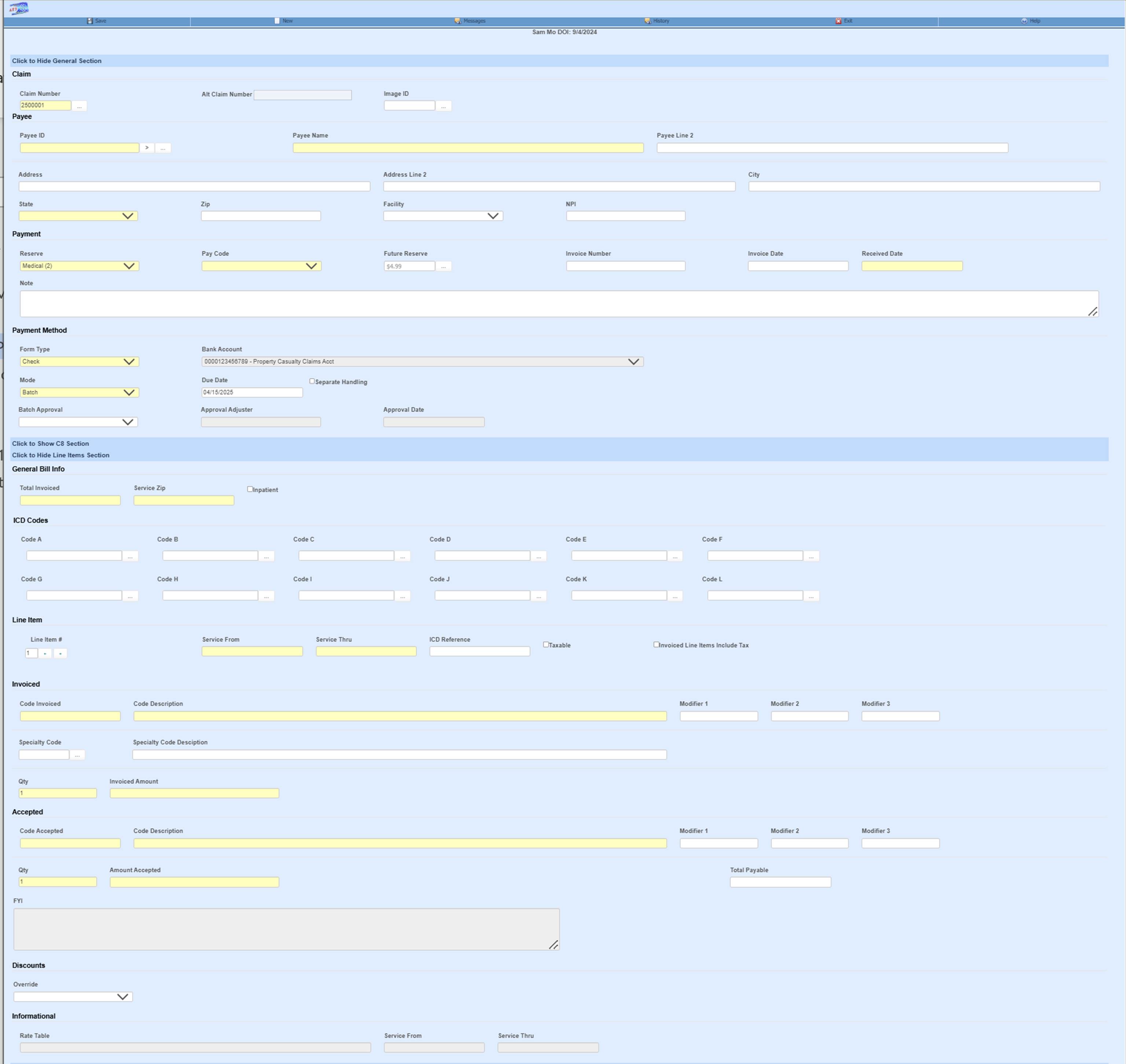
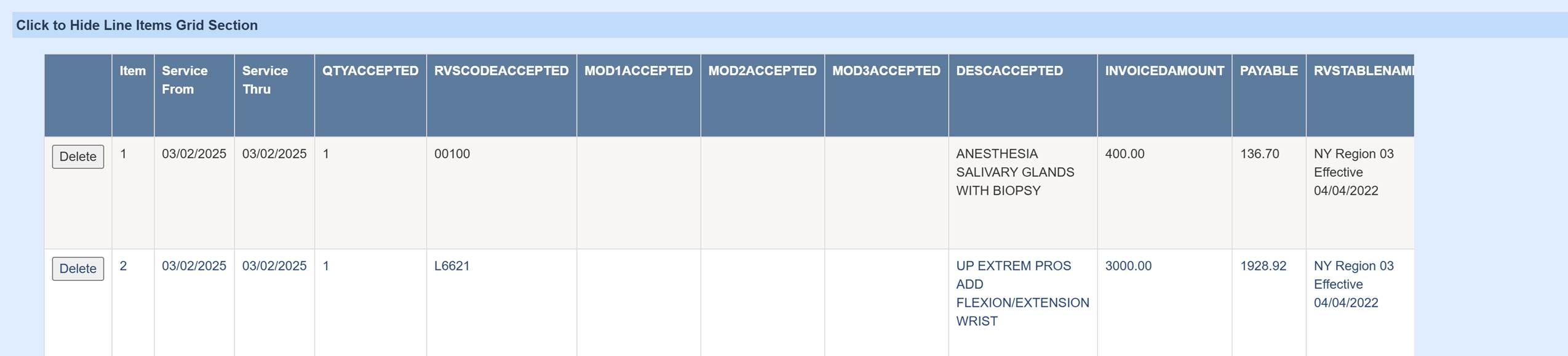
As the user enters line items, they are displayed in a grid at the bottom of the screen. The Line Item # field determines which item is currently being edited. By default, when a new line item is entered, the previous From/Thru dates will be copied to the new record and can be modified if needed.
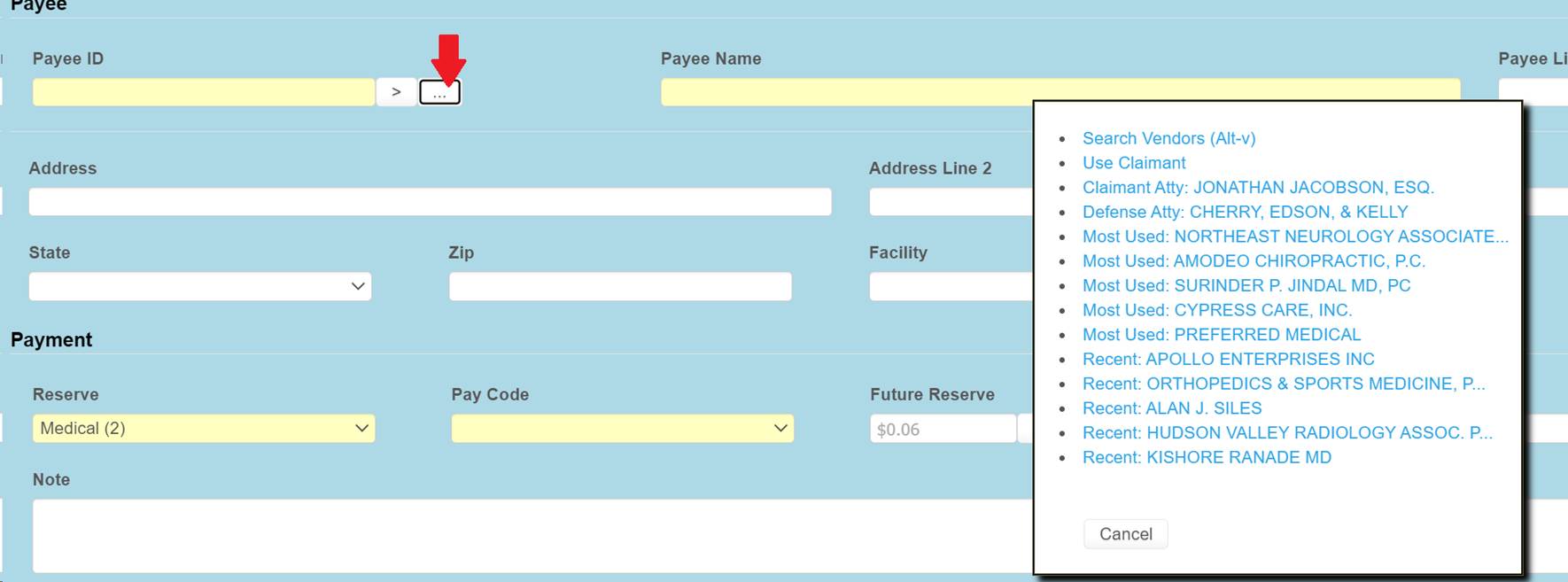
Payee Selection
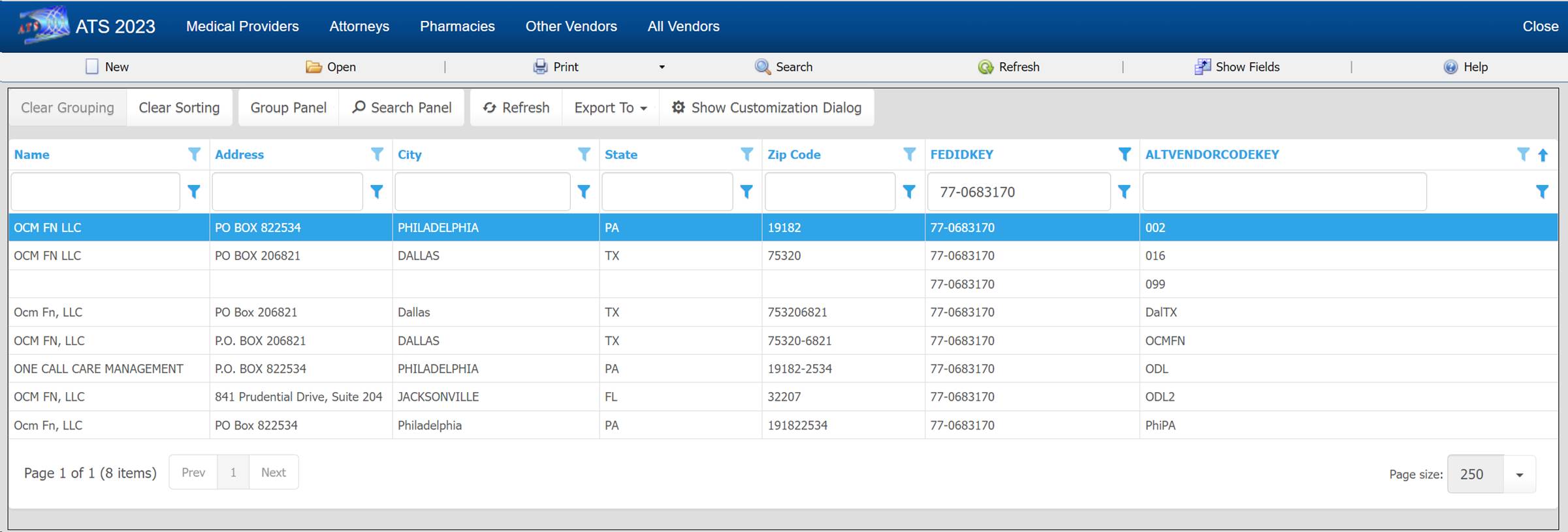
The three-dot button brings up a dialog with options to select a payee. The Search Vendors option brings up a search list of all active vendors. Vendors from the claim screen will be shown as options if filled in on the claim such as the Claimant and Defense Atty. If this claim has prior payments then the most recent and most used vendors will be selections as well.
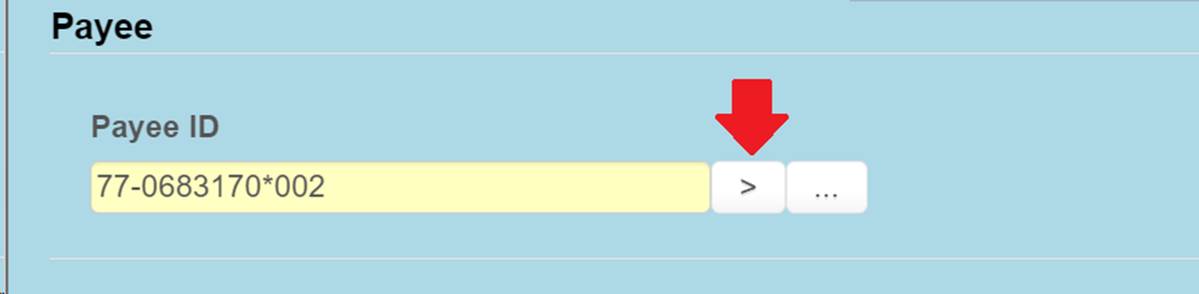
If the fed ID is known, it can be entered in the Payee ID field and the first vendor record found with that fed ID will be filled in. If there are multiple vendor records with the same fed ID, then the greater than sign button can be used to the fetch the next vendor record for the same fed ID. In this example, Payee ID would become 77-0683170*016 if the button is clicked, then if clicked again 77-0683170*099…
Discounts
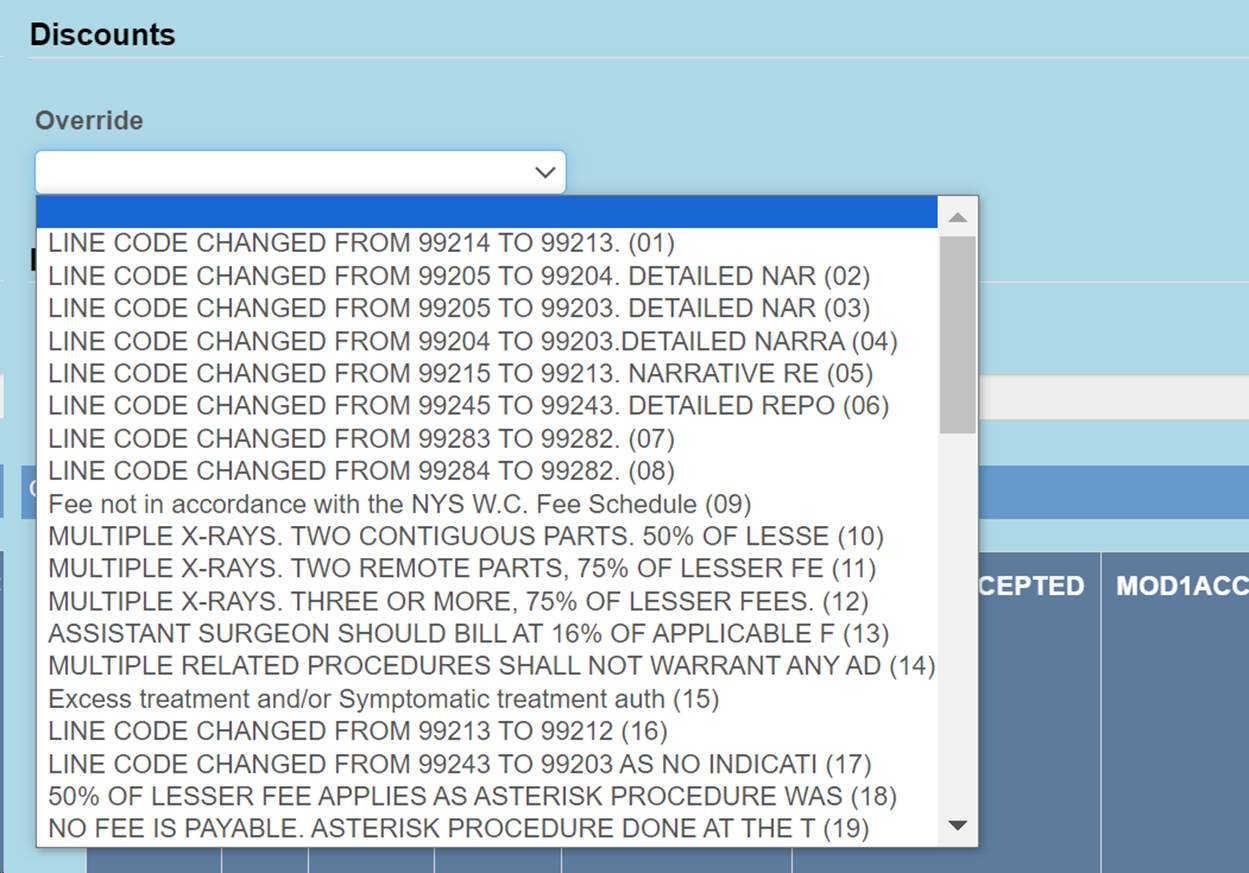
The user defined Override dropdown list is used to give a reason for the amount reduction of the billed line item.
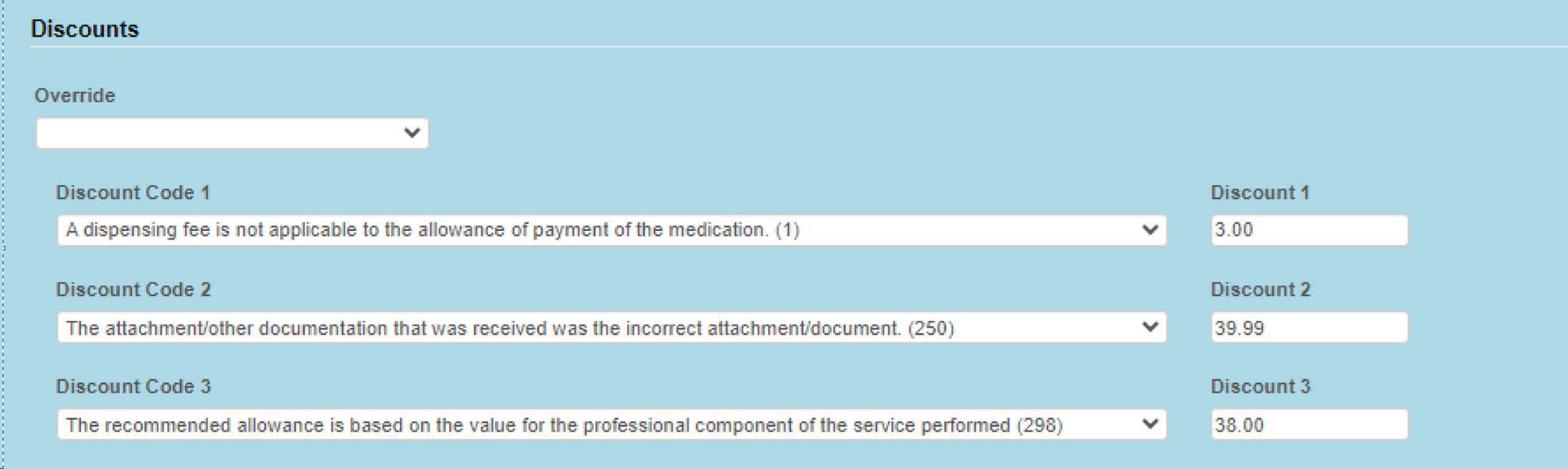
Optionally, if a list of codes are provided to ATS, then these line item discount fields can be added to the payment screen. These fields will not appear on the screen otherwise.
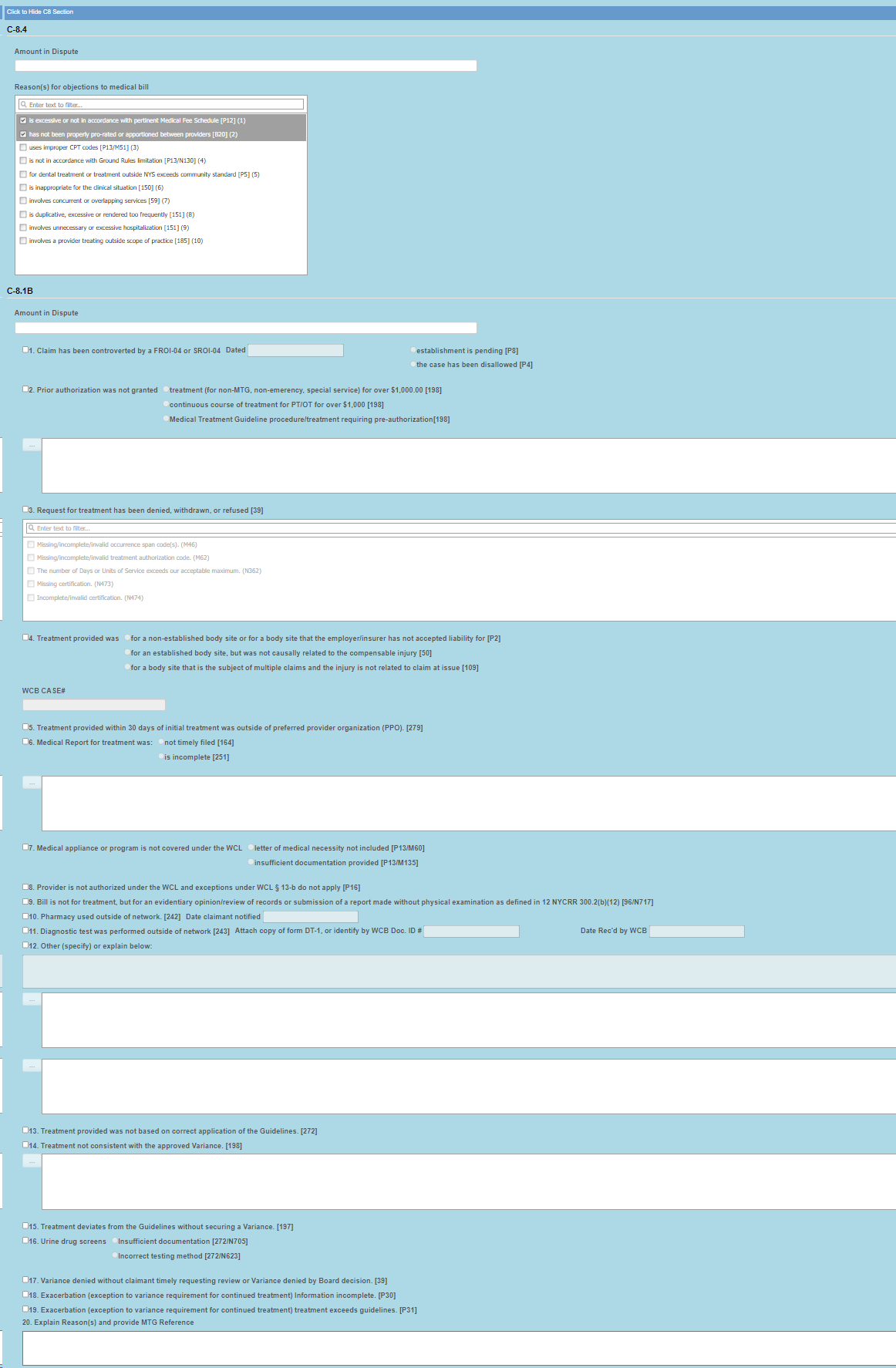
C-8.4/C-8.1
For NY an optional screen will be available to enter data for the forms C-8.4 and C-8.
Fee Reduction
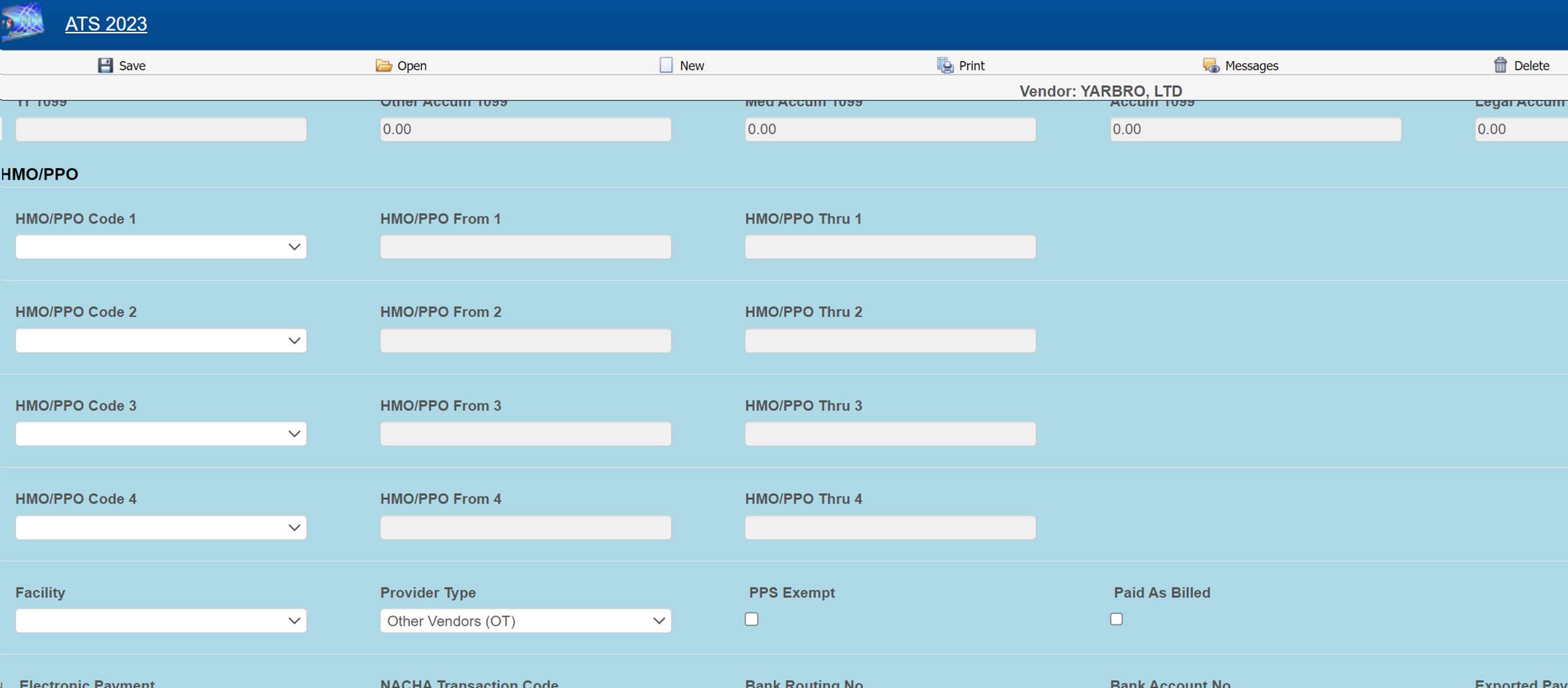
The record of the vendor being paid will be checked for optional HMO/PPO from/thru dates that cover the service dates in the payment record. If found, it will use the HMO/ PPO’s record for the allowed amount rate. If no HMO/PPO, then the optional UCR percentile for the vendor’s zip code is checked.
3. If the Override State flag has been set with the Module Parameters menu, the program will calculate the amount of the line item using both of the above methods and display whichever amount is lower.
When this optional feature is in use, the program will check for mutually exclusive procedures (e.g. 27177 and 11010) that are not allowed on the same bill. It will also look for major or comprehensive procedures that consist of a number of individual components or procedures. For example, the CPT code 31505 (larynoscopy diagnostic) consists of many other procedures, one of which is 36000 (microsurgery add-on). If both are on the same bill, the program will detect that the "code 36000 is part of the comprehensive procedure code 31505" and enter ZERO in the accepted amount for line 36000.
The ATS system supports multiple fee schedules; federal (DOL), state, and the usual and customary reimbursement (UCR) schedule. In that case, the program will display the amounts in the different schedules so the user can make a selection.
Discounts and/or custom fee schedules can also be setup for specific vendors. (Without this ability to use custom schedules, invoices for vendors that use their own service codes could not be reviewed.) After custom schedules have been setup, their use is transparent during data entry unless the code on the invoice is found in multiple schedules.
Saving the Record
During the save process, future medical reserves will be verified. If the futures are not enough, the program will check the Negative Reserves value set with the Module Parameters menu.
If the Negative Reserves check box is set, then the payment entry is allowed and the future reserves in the claim will become negative, which is not how systems are typically opted to set up. If the check box is not set, then the program will check the Stair Step Reserves value that was set using the Application Parameters screen.
If the Stair Step Reserves value is set to ALL or Closed Claims Only for a closed claim, then the amount incurred in the claim will automatically be increased to cover the payment. Otherwise, the button next to the Future Reserves field on the payment screen can be used to increase the reserves. All changes depend on the operator's reserve limit.
The field labeled Mode determines if the payment will be batched, notated to check history or left on hold to be finished in the future. Although if batch or notate are selected and the payment amount is over the operator’s limit then the payment will be pended. Pended payments must be released by a user with authority to do so using the Batched Edit selection from the Process menu.
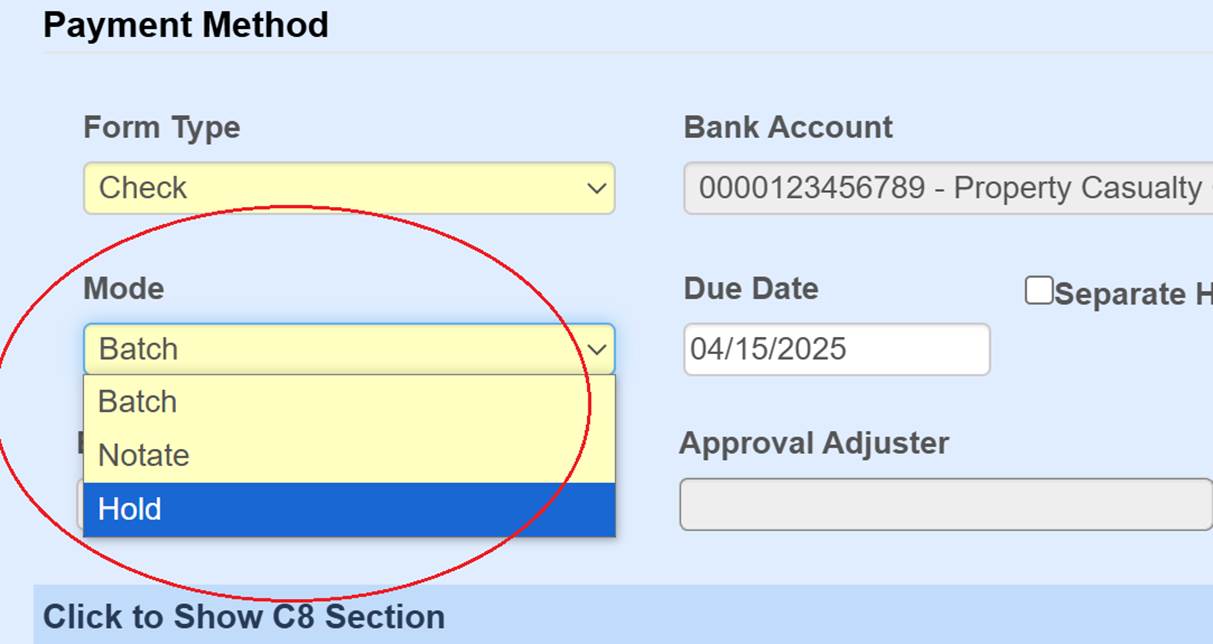
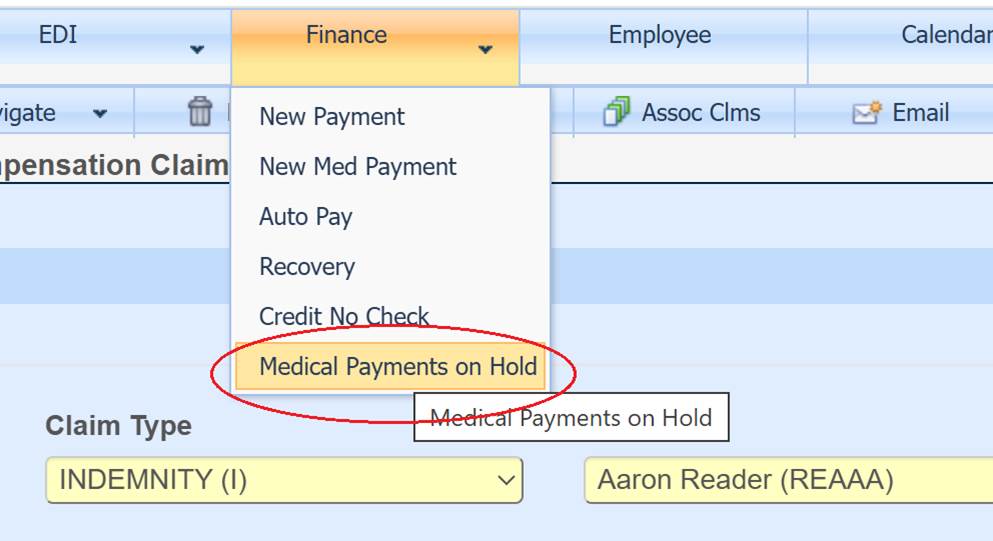
If the payment is put on hold, it can be accessed from
the Medical
Payments on Hold option on the claim screen or from the Medfee on Hold option from the ATS Process menu.