PAC Claims and Incidents
Setup
Claim and incident screens are customized by ATS during the
initial system installation. Authorized
users can adjust fields on the screens, for a number of things such as label
changes, tooltip text, field level help, field level security, hiding of
fields, etc. Users can also set personal
preferences for color and style. To
help navigate screens with a large number of fields,
such as the claim screen, accordion style screens are used with hot keys to
quickly set cursor focus to a section of the screen. These topics are described in help under Screen Appearance Customization and Field Property Customization.
A specific claim screen can be set up for each claim type as needed. For example, a special vehicle screen could be created for auto claim types, a special property screen for property claim types and a general liability screen for all others.
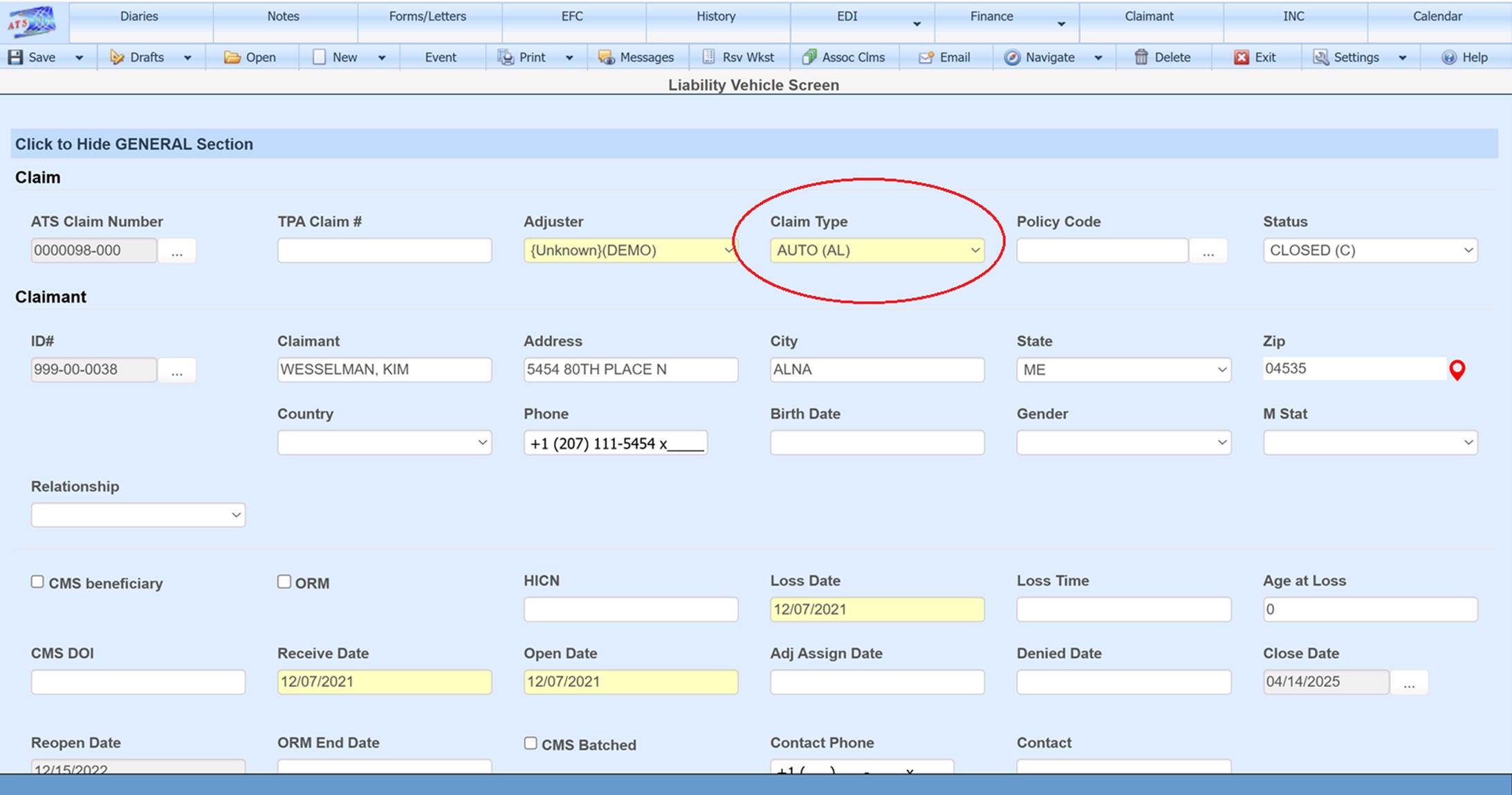
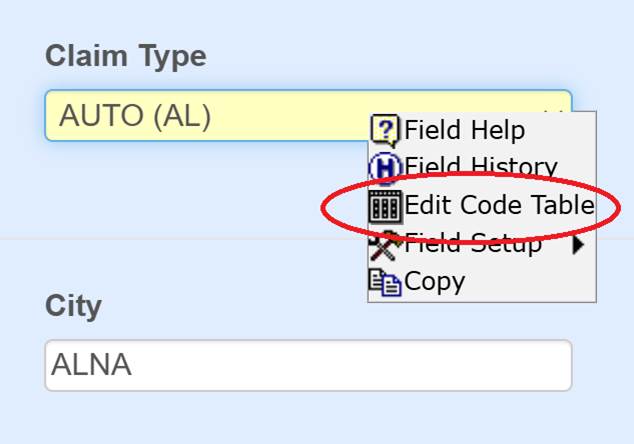
As with many of the code table fields on any screen, the claim type screen can be accessed from the claim screen by double-clicking the Claim Type field to bring up the context menu which has Edit Code Table as an option.
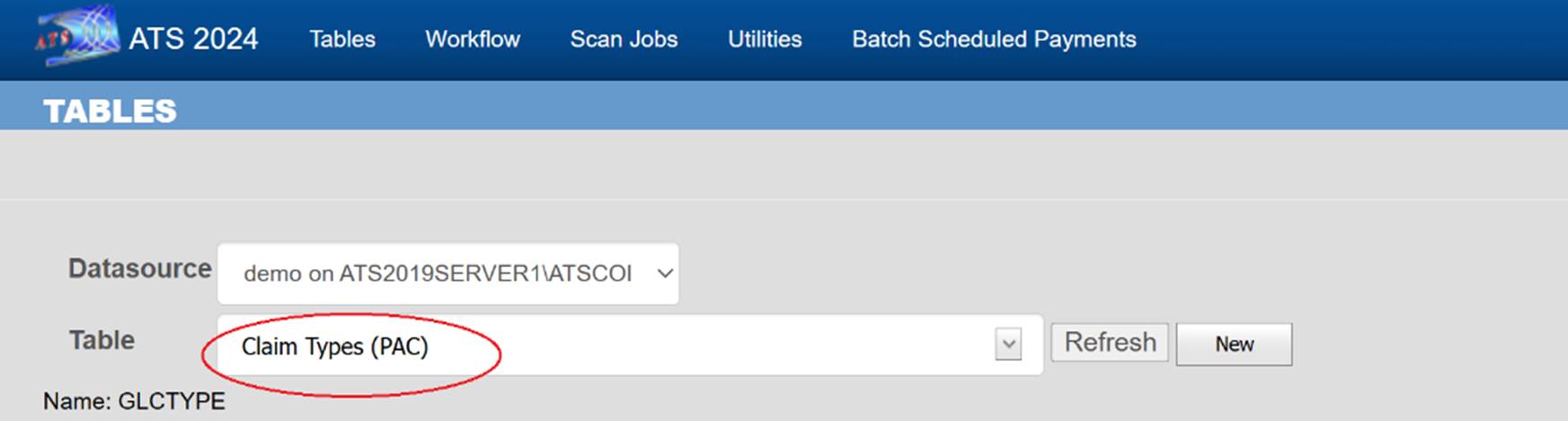
It can also be accessed through the Maintenance option found on the ATS Console – Tables - Table drop down option: Claim Types (PAC)
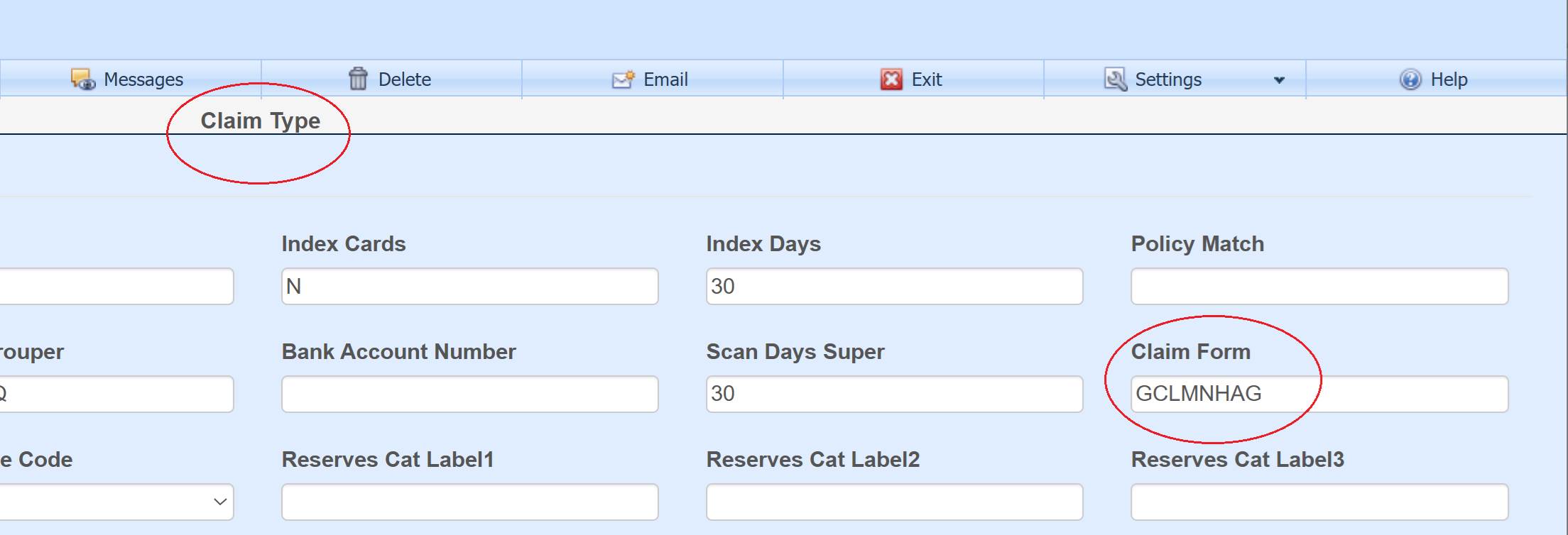
The Claim Form field on the claim type screen is used to store the specific screen to be used for each claim type. If not filled in, then the parameter screen found in Maintenance is looked at for the claim screen to use.
Entry of a new claim
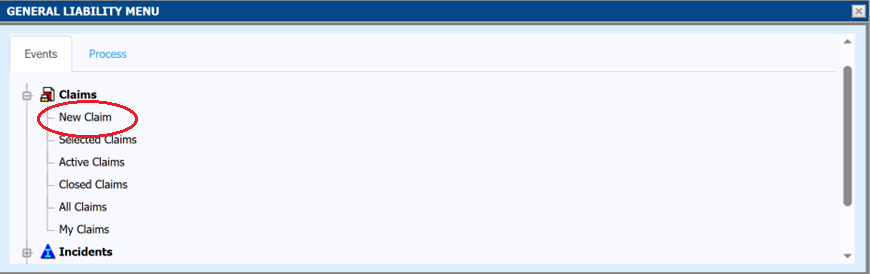
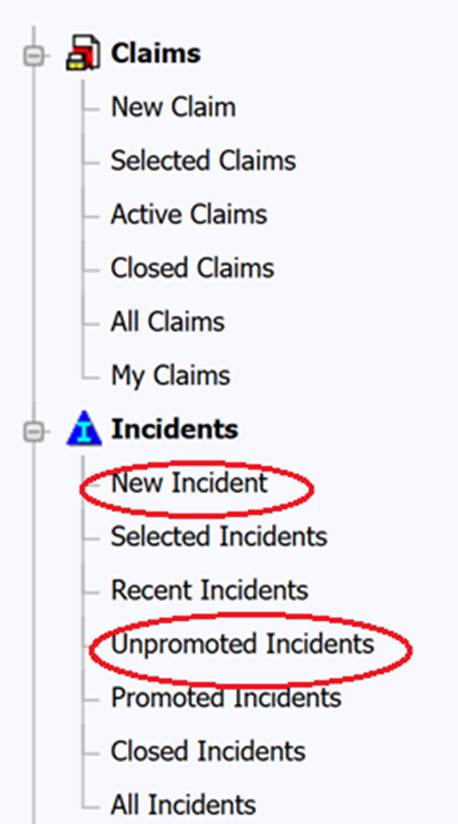
Typically, claims are created by entering an incident record then promoting to a claim. However, a new claim can be created from the ATS Console tile menu without an incident.